View SSURGO Soils & FEMA Flood Maps on Your Phone
If you've ever tried to get SSURGO soil survey data or FEMA flood maps onto a mobile device, you know the pain: download a massive ZIP from the NRCS website, unzip it on a desktop, figure out which tables join to which geometries, export to a format your phone can read, transfer the file, and hope it all works. Most people just give up and use Web Soil Survey on a laptop.
GoGIS skips all of that. You pan to your area of interest on the map, tap download, and the data appears as a layer you can query, color-code, and overlay with your own field data. It pulls directly from federal web services — the same authoritative data you'd get from the desktop workflow, without the desktop.
SSURGO Soil Survey Data
SSURGO is the most detailed soil survey data available in the United States, published by the USDA Natural Resources Conservation Service. It includes soil type boundaries, drainage classification, hydric ratings, taxonomic class, and dozens of other attributes for every mapped soil unit in the country.
Why You'd Want It on Your Phone
- Soil sampling — overlay soil types on your sample grid to verify you're capturing the variability in the field
- Site assessment — check drainage class and hydric ratings on-site during environmental due diligence
- Farm planning — see soil boundaries while walking the field to make management zone decisions
- Construction & engineering — check soil bearing capacity and depth to bedrock before breaking ground
How to Load It in GoGIS
Navigate the map to your area of interest. Open the reference data panel and select SSURGO soils. GoGIS downloads the soil polygons for the visible area and adds them as a layer. You can then tap any polygon to see its full attribute table — soil name, drainage class, hydric rating, taxonomic classification, and more.
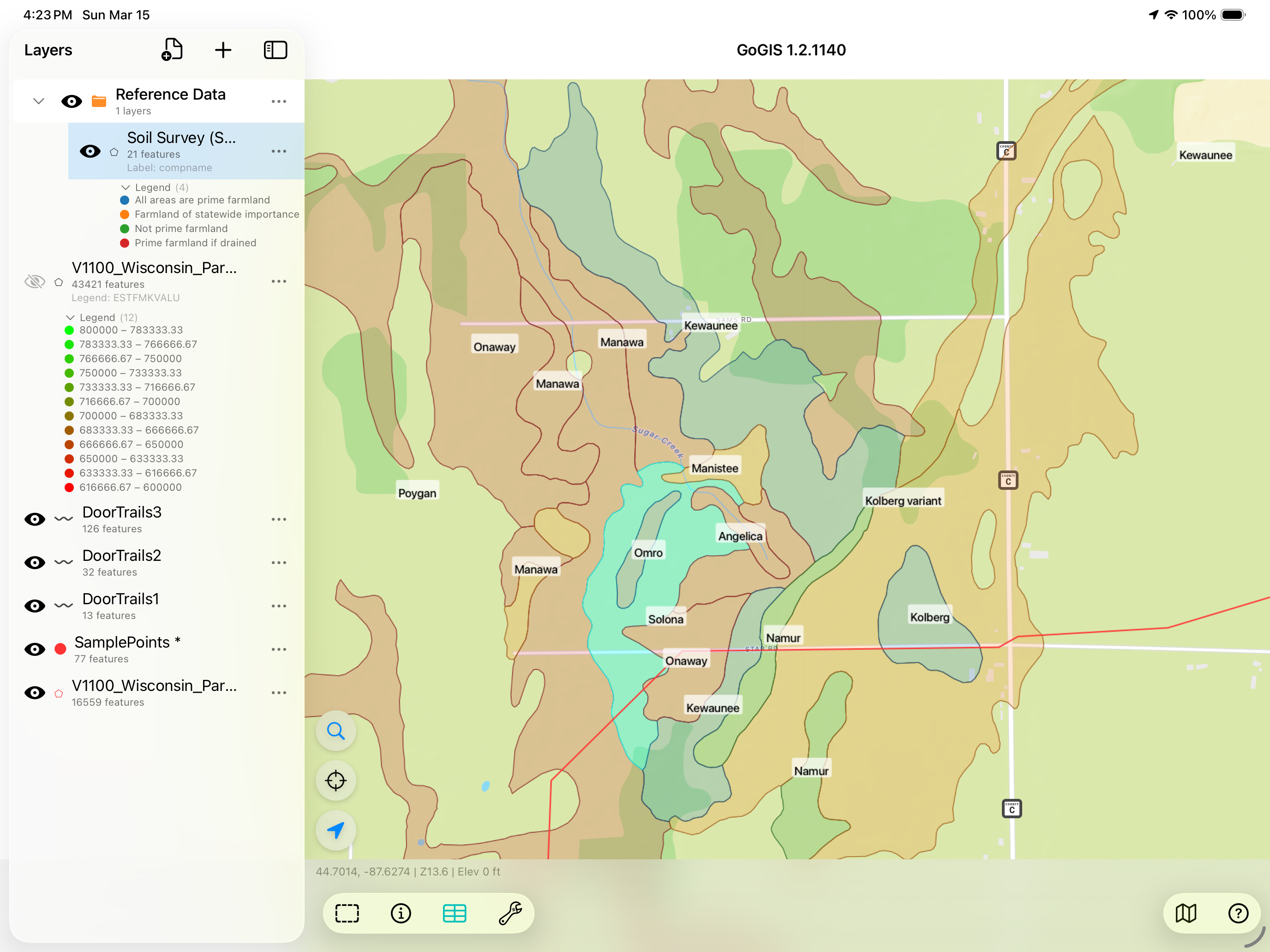
Color-code the layer by any attribute to see patterns at a glance — shade by drainage class to identify poorly drained areas, or by hydric rating to flag potential wetland soils.
FEMA Flood Zone Maps
FEMA's National Flood Hazard Layer (NFHL) maps flood risk across the United States. The data includes Special Flood Hazard Areas (100-year and 500-year flood zones), floodways, and base flood elevations — the same data that drives flood insurance requirements and development restrictions.
Why You'd Want It on Your Phone
- Real estate & appraisal — check flood zone status on-site during property inspections
- Environmental consulting — overlay flood zones on project areas during site visits
- Land development — identify flood-restricted areas before investing in survey or engineering
- Insurance — verify flood zone designations in the field
How to Load It in GoGIS
Same process as SSURGO — navigate to your area, open the reference data panel, and select FEMA flood zones. The flood hazard polygons download and appear on the map. Tap any zone to see its designation (Zone A, AE, X, etc.) and associated attributes.
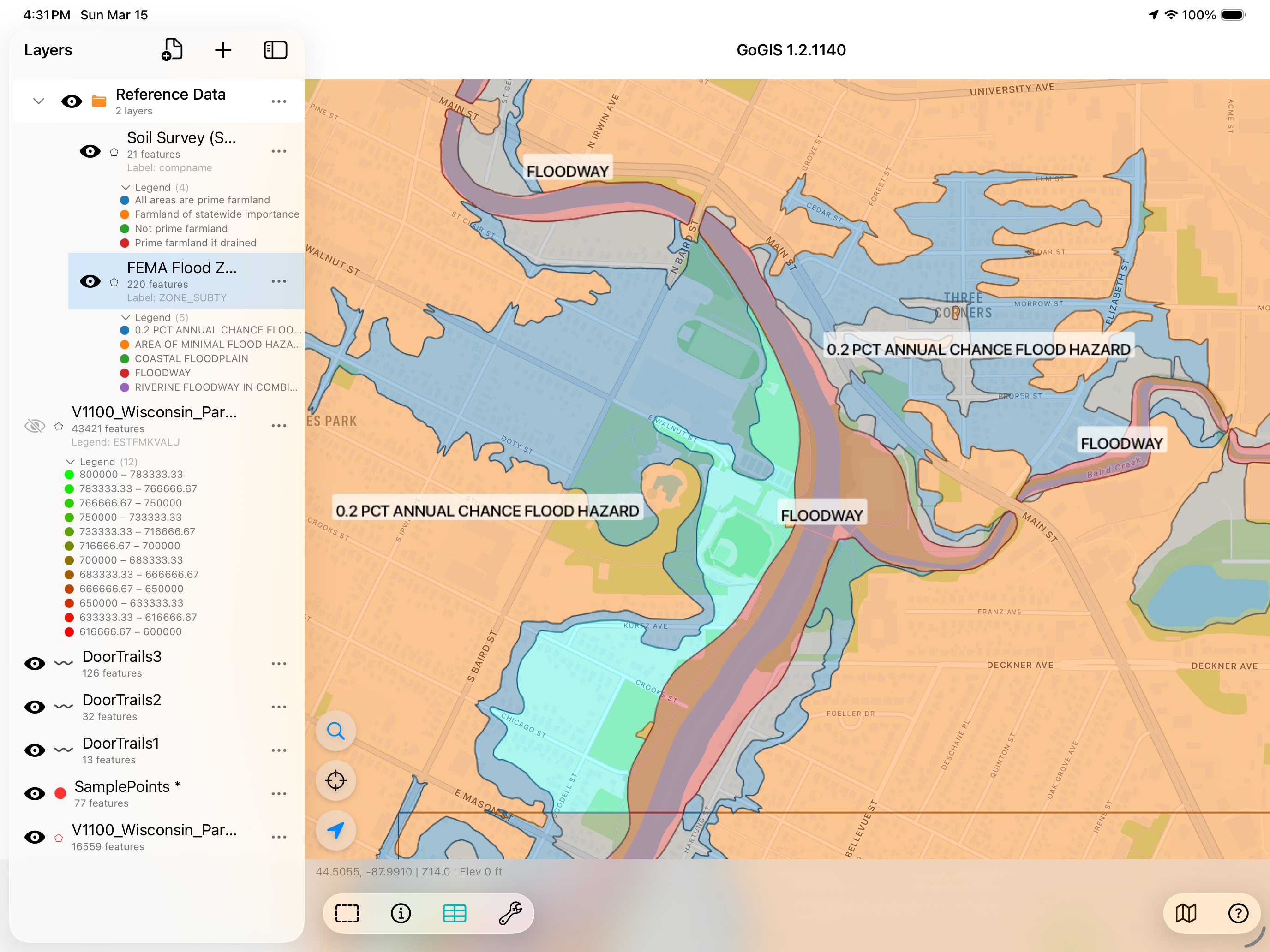
Layer them together: The real power is combining reference data with your own layers. Overlay flood zones on parcels to see which properties are affected. Stack SSURGO soils on top of your sampling grid. Add wetlands and hydric soils to an environmental site map. All on one screen, in the field.
Other Reference Layers
GoGIS can also pull in additional federal datasets using the same download workflow:
- Rivers & streams — the National Hydrography Dataset (NHD), useful for setback analysis and watershed planning
- Wetlands — the National Wetlands Inventory (NWI), critical for environmental permitting and site assessment
How It Works Offline
Once you've downloaded reference data, it's stored locally on your device. You need an internet connection for the initial download, but after that the layers are available offline. Head into the field with no cell signal and the data is still there — you downloaded it, you own it.
This is particularly useful for rural site visits where cell coverage is spotty. Download your reference layers over Wi-Fi before you leave the office, and they'll be waiting for you when you get to the site.
Your reference data, in your pocket
Stop wrestling with desktop downloads. GoGIS puts SSURGO, flood zones, and more on your iPhone or iPad in seconds.
Get GoGIS on the App Store