GPS Field Data Collection on iPhone & iPad
For decades, field crews relied on dedicated GPS handhelds to collect spatial data. Those devices worked, but they were expensive, clunky, and almost always ran software designed in the early 2000s. The iPhone in your pocket has a GPS receiver that rivals most professional handhelds — and unlike those handhelds, it also has a high-resolution camera, a bright touchscreen, and enough processing power to handle serious GIS data.
GoGIS turns that hardware into a complete field data collection system. You define the data schema, design the entry form, walk to your location, and tap. The GPS coordinates are captured automatically, your custom form pops up, and everything is stored locally on the device. No cell signal needed. No cloud account required.
How GPS Works on iPhone (No Internet Required)
A common misconception is that iPhones need an internet connection to get a GPS fix. They don't. Every iPhone has a built-in GNSS receiver that communicates directly with GPS, GLONASS, Galileo, and BeiDou satellites. When you're standing in a field with no cell coverage and no Wi-Fi, your phone can still determine its position to within a few meters.
Internet connectivity can speed up the initial fix through Assisted GPS, but once you have a lock on satellites, the position updates come from space, not from a cell tower. GoGIS shows your current accuracy estimate on screen so you always know how reliable the fix is before you record a point.
Setting Up a Point Layer with Custom Attributes
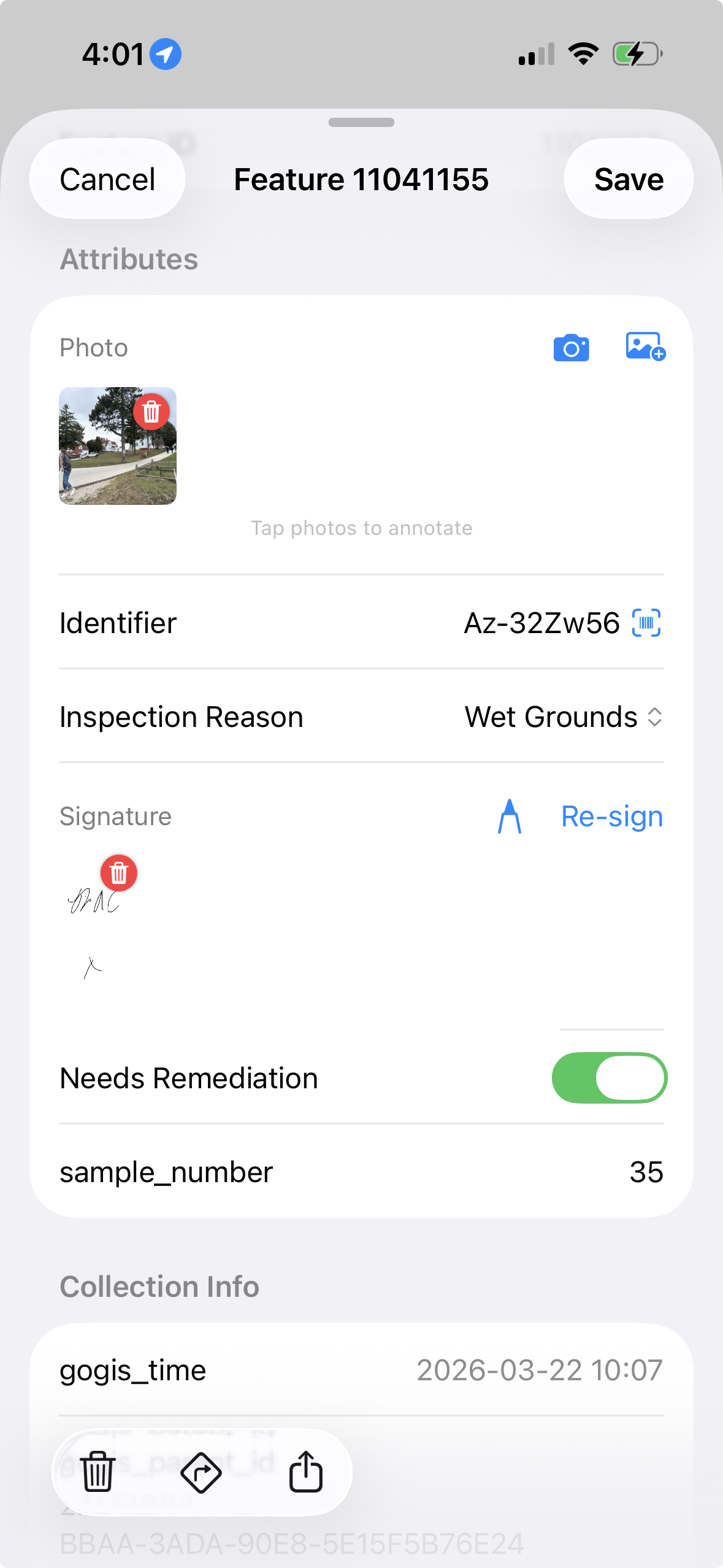
Before heading into the field, create a new point layer in GoGIS and define the attributes you need to collect. Each attribute becomes a field on the data entry form. You choose the field type that matches the data:
- Text — free-form notes, addresses, descriptions
- Pick list — a fixed set of choices (species, condition rating, material type)
- Date/time — inspection dates, scheduled follow-ups
- Photo — attach one or more camera images to the feature
- Barcode / QR — scan equipment tags, sample IDs, asset labels
- Signature — capture sign-off for chain-of-custody or inspections
This setup takes a few minutes and saves hours of cleanup later. When your crew fills in a pick list instead of typing free text, every record is consistent and ready for analysis the moment it leaves the device.
Collecting Points in the Field
Once your layer is set up, collecting data is straightforward. You have two options: tap the map at any location to place a point manually, or use the GPS button to drop a point at your current position. The second method is what most field crews use — walk to the feature, tap the GPS button, and the coordinates are locked in.
The moment a point is placed, the custom form opens. Fill in the attributes, snap a photo if needed, scan a barcode, and save. The feature appears on the map immediately. Move on to the next one.
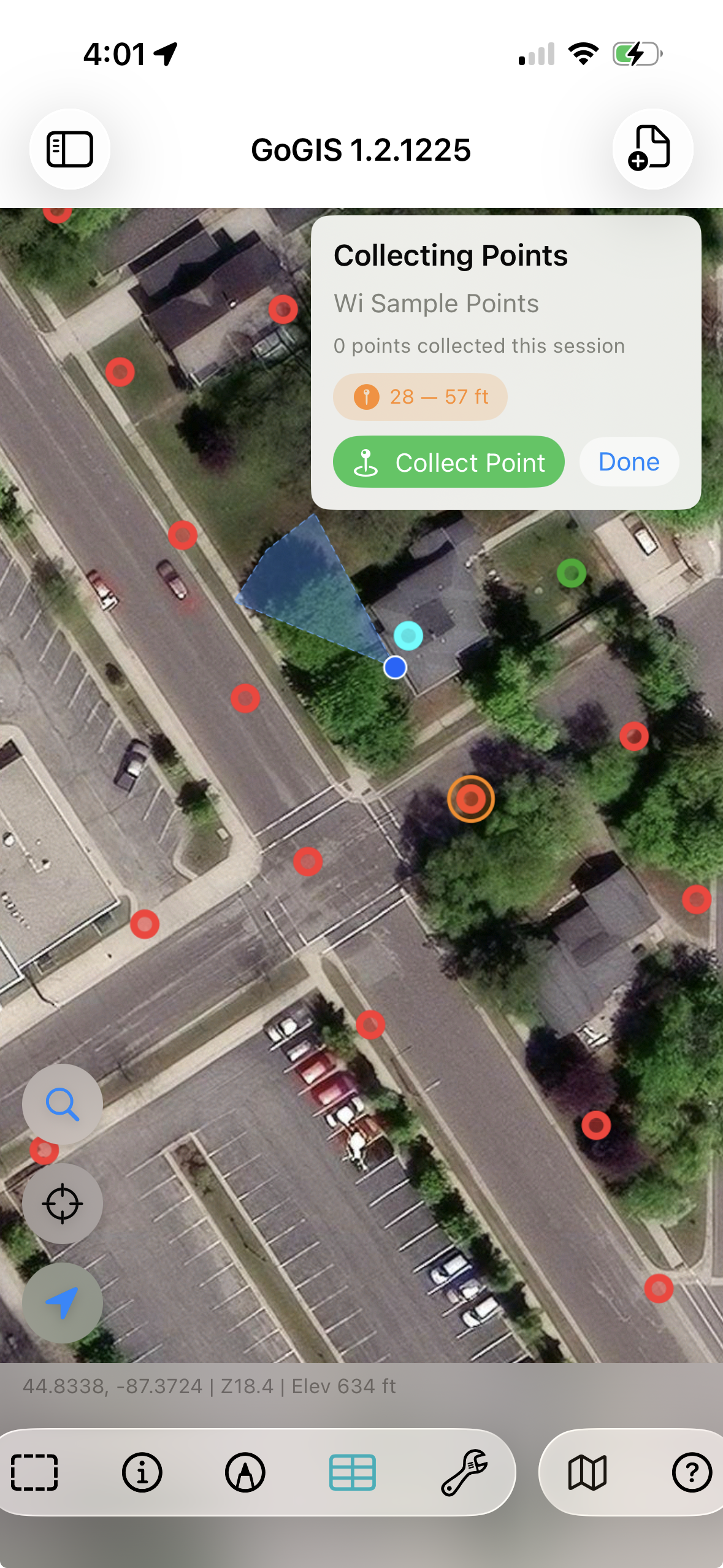
There's no save-to-cloud step, no sync spinner, no waiting. Everything is written to the local database on the device. You can collect hundreds of points in areas with zero connectivity and export everything when you're back at the office — or right there in the field if you do have a signal.
Exporting and Sharing Your Data
When collection is finished, export the layer in the format your team needs. GoGIS supports GeoJSON, KML, CSV, and Shapefile. Photos are bundled into the export ZIP alongside the spatial data. Share the file via AirDrop, email, or any app on your device.
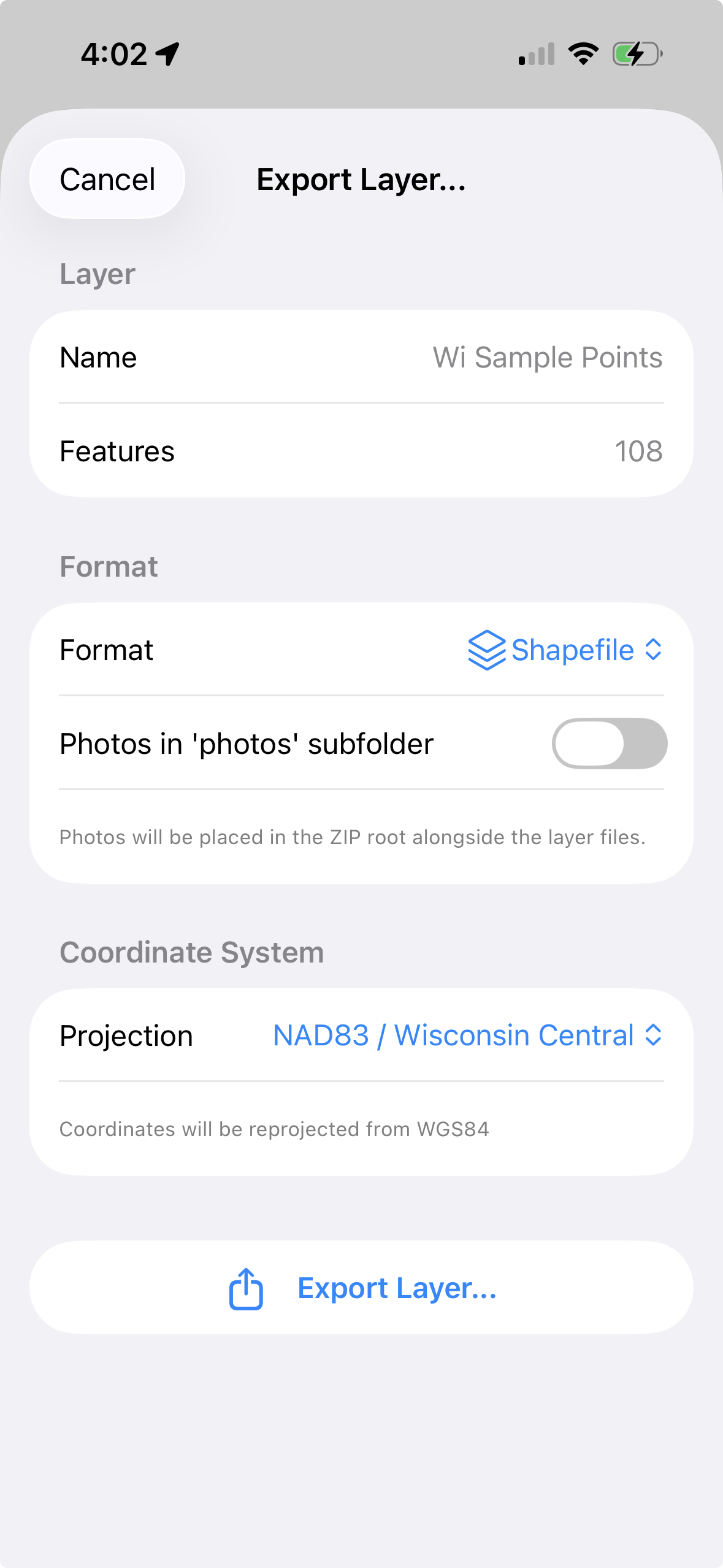
The exported data opens directly in QGIS, ArcGIS, Google Earth, or any standards-compliant GIS tool. Because the attributes were structured at collection time, there's no post-processing needed — no fixing typos, no reformatting dates, no matching photos to records.
Why Replace a Dedicated GPS Unit?
Dedicated GPS receivers still have their place for survey-grade accuracy. But for most field data collection — utility inspections, environmental monitoring, forestry plots, habitat surveys, asset inventories — a phone-based workflow is faster, cheaper, and produces richer data. You get photos, barcodes, signatures, and structured forms in a single device that fits in your pocket. And your crew already knows how to use it.