Offline Maps for Fieldwork on iPhone & iPad
Fieldwork happens in places where cell towers don't reach. Remote forest plots, offshore survey sites, mountain valleys, underground utilities — the list is long. If your mapping tool requires an internet connection, it fails exactly when you need it most. GoGIS is designed from the ground up to work offline. Your layers, your data, and your GPS all function without any network connection.
Why Offline Matters for Field Mapping
Many GIS apps treat offline mode as an afterthought — something you activate before leaving the office, hoping the sync completed. GoGIS takes the opposite approach. All spatial data is stored in a local SQLite database on your device. There is no cloud sync, no server dependency, and no login required. When you import a shapefile or GeoPackage, the data lives on the iPhone or iPad itself. When you create a new point, it is written directly to that local database. The app never assumes you have connectivity.
This means there is nothing to prepare for "going offline." You are always offline by default, and connectivity is simply a bonus when available.
Basemap Tile Caching
The one part of a map that typically requires internet is the basemap — the background satellite imagery or street map you see underneath your data layers. GoGIS caches every tile you view. Pan around your project area while connected to Wi-Fi, zoom to the levels you need, and those tiles are stored on-device. When you arrive at the field site without connectivity, the basemap is already there.
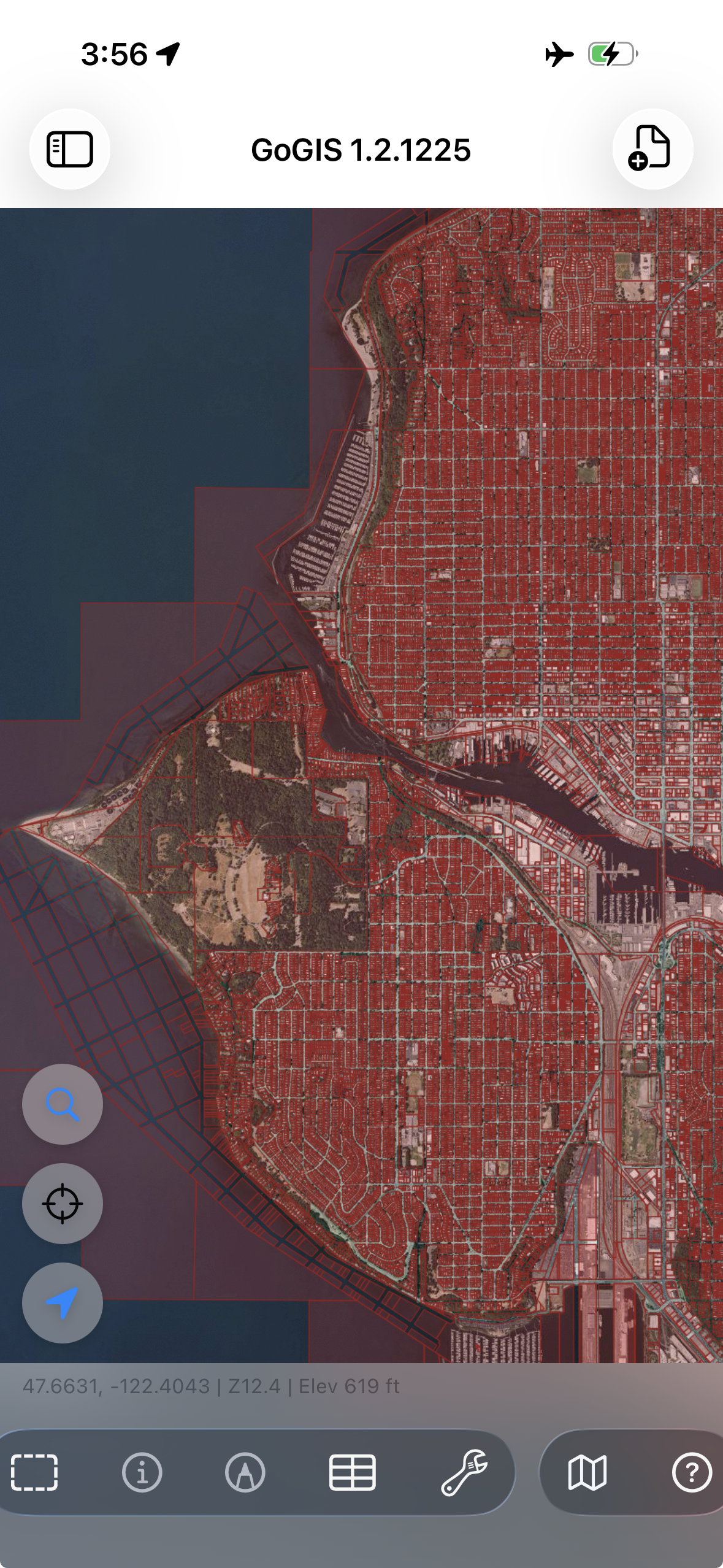
On iOS, GoGIS uses Apple Maps as the default basemap, which benefits from Apple's own tile caching. Tiles you have viewed recently remain available even in airplane mode. For best results, spend a few minutes browsing your target area at the zoom levels you will use before heading into the field.
GPS Works Without Internet
A common misconception is that phones need internet for GPS. They don't. Every iPhone and iPad with cellular capability includes a GNSS receiver that communicates directly with GPS, GLONASS, Galileo, and BeiDou satellites. Your position is determined by signals from space, not from cell towers. Internet can speed up the initial satellite lock through Assisted GPS, but once you have a fix, the position updates are entirely satellite-based.
GoGIS shows your real-time accuracy estimate on screen. In open sky conditions, expect 3-5 meter accuracy — comparable to most dedicated handheld GPS units. This is more than sufficient for field mapping, asset inventory, environmental monitoring, and similar tasks.
Collecting Data Offline
With your layers loaded and the basemap cached, you can collect data anywhere. Tap the GPS button to drop a point at your current location. Fill in attributes using custom forms with pick lists, text fields, dates, photos, and barcodes. Everything is saved immediately to the local database. There is no upload queue, no pending sync, and no risk of data loss from a failed connection.
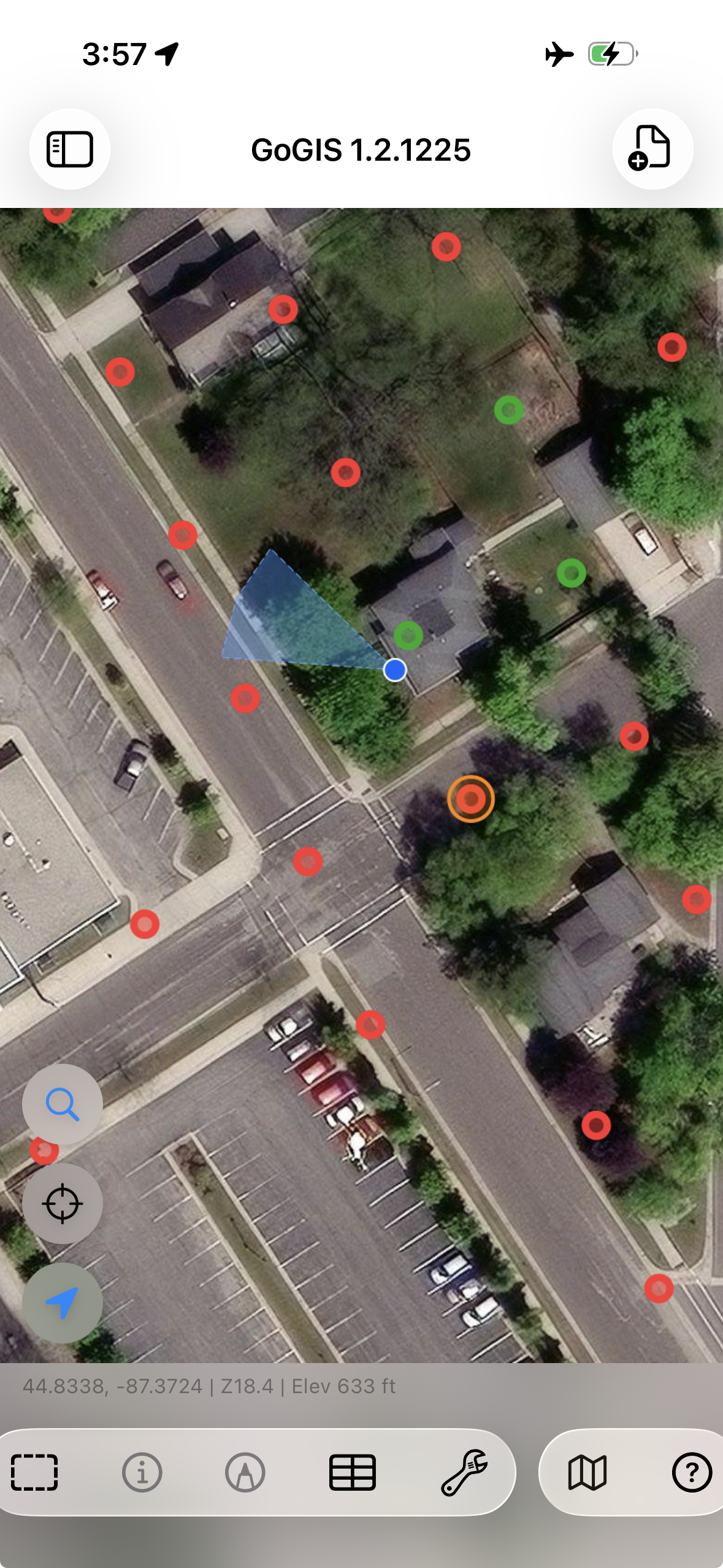
You can collect hundreds or thousands of points in a single offline session. The SQLite database handles large datasets efficiently, and performance does not degrade as the feature count grows.
What Happens When You Reconnect
Nothing special — and that's the point. Because your data was never waiting to sync, there is no reconciliation step. When you are back in range of Wi-Fi or cellular, you can export your layers as GeoJSON, KML, CSV, or Shapefile and share them via AirDrop, email, or any app on your device. The data was complete and usable the entire time.
Tips for Preparation
- Cache your basemap — browse the project area on Wi-Fi at the zoom levels you need
- Load all layers beforehand — import shapefiles, GeoPackages, or KML files before leaving the office
- Charge your device — GPS and screen usage drain the battery; bring a power bank for long field days
- Test in airplane mode — verify everything works before you drive two hours to a remote site