Custom Data Collection Forms for Mobile GIS
The biggest problem with field data collection isn't the technology — it's the data quality. Send a crew into the field with free-text forms and you'll get back six different spellings of "concrete," timestamps in three formats, and half the required fields left blank. The fix isn't more training. It's better forms.
GoGIS lets you design custom attribute forms that constrain input where it matters and streamline entry where it doesn't. Forms can also calculate values, reference existing attributes or related records, and show or hide fields based on earlier answers. Every observation is GPS-stamped and tied to a feature on the map, so there's never a question about which record goes with which location.
What You Can Put in a Form
GoGIS supports several field types that cover the range of what field crews typically need to record:
Pick Lists (Drop-Down Selection)
Define a list of valid values and let the user pick one. No typing, no typos, no ambiguity. Use these for anything with a fixed set of options: material type, condition rating, land use classification, pipe diameter, tree species.
Pick lists are the single biggest improvement you can make to field data quality. If your current workflow has people typing "PVC," "pvc," "Pvc," and "polyvinyl chloride" into the same column, a pick list fixes that instantly.
Multi-Select Pick Lists
When a feature can have more than one value — multiple damage types on the same structure, several species observed at a plot, or a combination of land uses — use a multi-select pick list. The user taps all the options that apply, and the selections are stored together in the attribute field. Same data quality benefit as a single-select pick list, but without forcing a single answer when the reality is more complex.
Date & Time Picker
A native calendar and clock picker for recording dates, times, or both. Tap the field and scroll to the right date — no typing, no format confusion, no "was that MM/DD or DD/MM?" debates. Use it for inspection dates, scheduled follow-ups, permit expiration dates, or any temporal data. The value is stored in a standard format that imports cleanly into any GIS or database.
Text Fields
Free-text entry for notes, descriptions, addresses, or any value that can't be predicted in advance. Use these sparingly for things that genuinely need free input — the more you can constrain with pick lists, the cleaner your data.
Barcode & QR Code Scanning
Tap the scan button on any text field and point your camera at a barcode or QR code. The decoded value populates the field automatically. Use this for sample bag IDs, asset tags, equipment serial numbers, or any pre-printed label.
Radio Buttons
When a pick list has just a handful of options and you want them all visible at once, use a radio button field. Instead of tapping to open a drop-down, all choices are right there on the form — tap one and move on. Ideal for condition ratings (Good / Fair / Poor), status fields (Open / Closed / Pending), or any short list where speed matters.
Yes / No Toggle
A simple binary switch for fields that only have two states: present or absent, accessible or blocked, compliant or non-compliant. One tap, no ambiguity. Use these for inspection checklists, permit compliance, safety checks — anywhere a yes/no answer is all you need.
Rating Scale
A visual star or numeric rating input for subjective assessments. Rate pavement condition from 1–5, give a site a cleanliness score, rank vegetation health. The rating is stored as a number in your attribute table, ready for analysis and comparison across sites.
Photo Capture
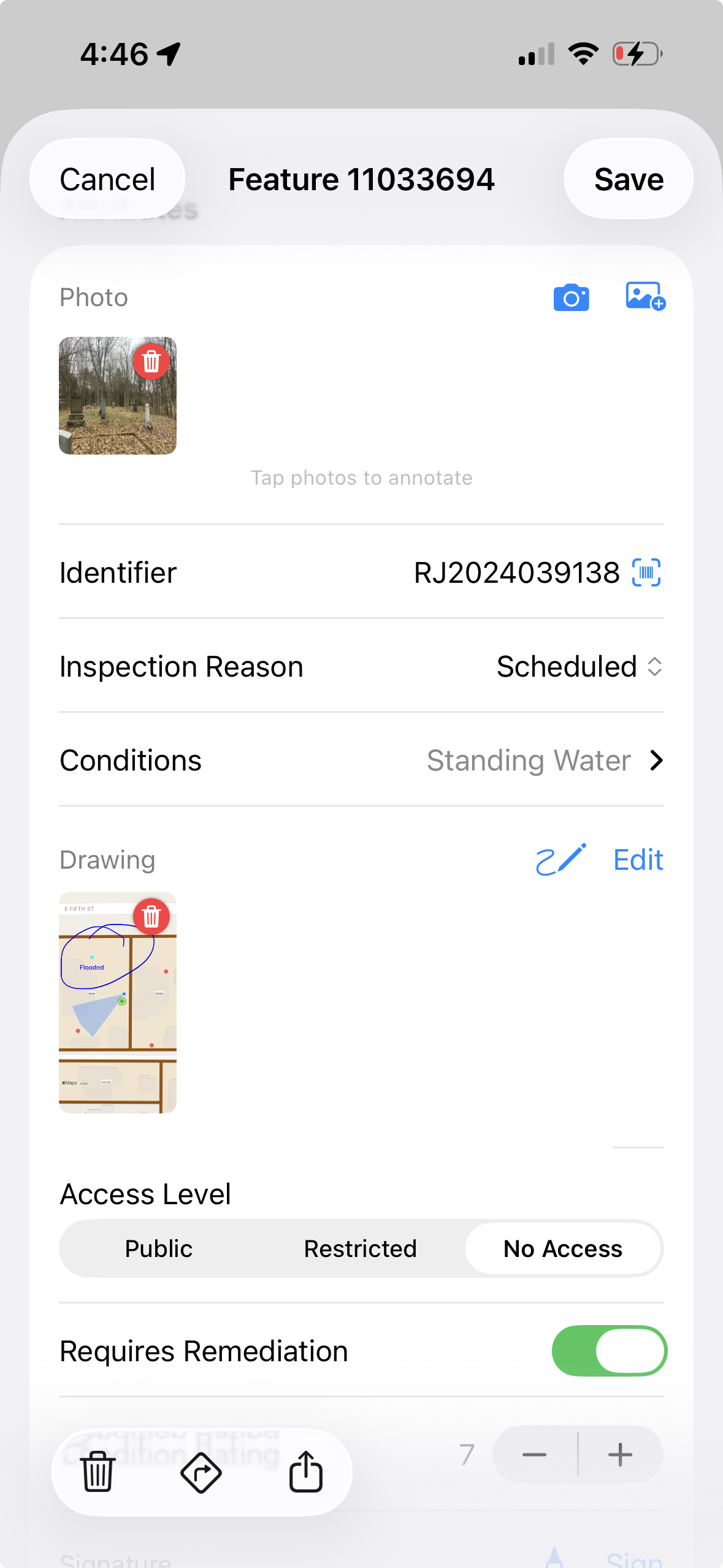
Attach one or more photos to any feature. The camera opens directly from the form, the photo is GPS-tagged, and it's linked to that specific record. When you export, photos are bundled into the ZIP alongside your spatial data. No more matching loose photos to field notes after the fact.
Field Drawing
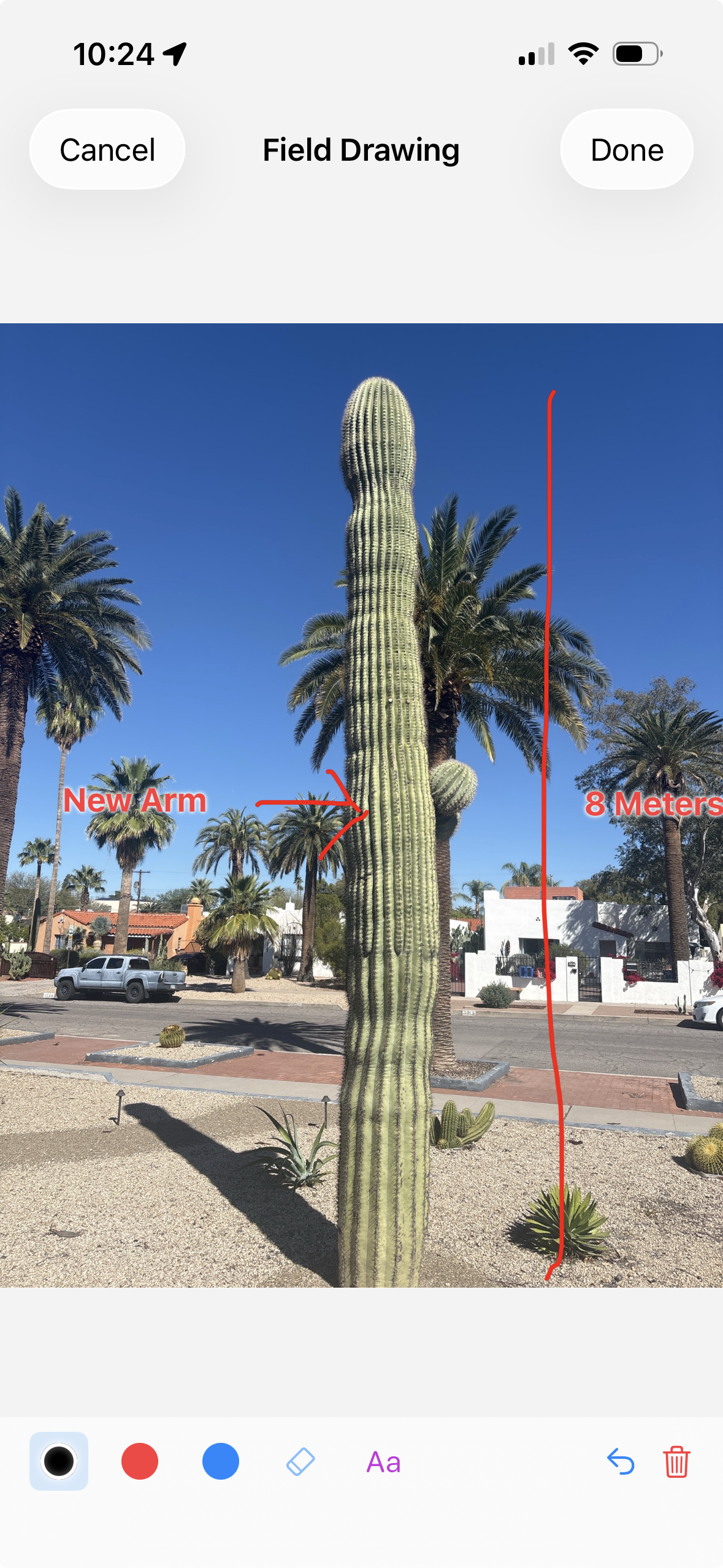
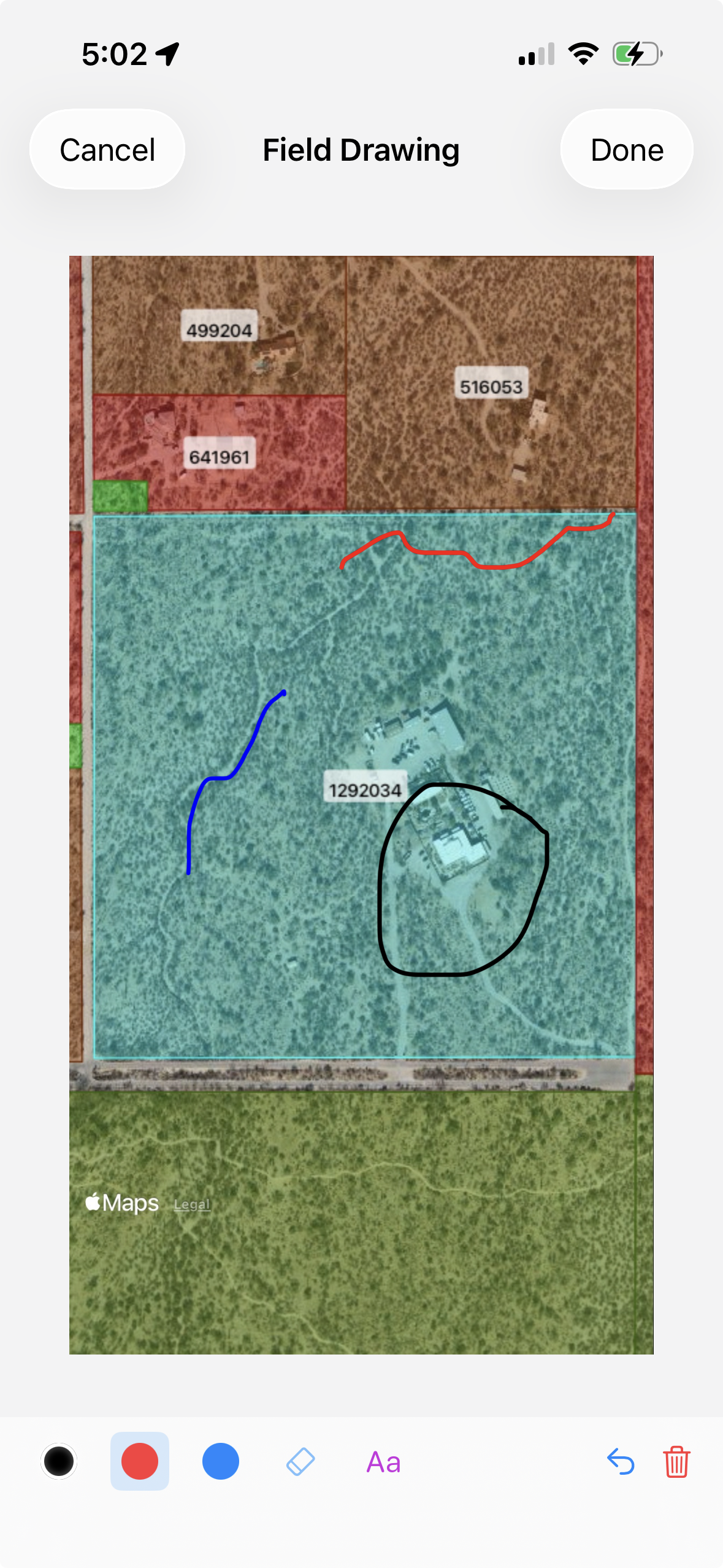
Sometimes a photo isn't enough — you need to sketch what you're seeing. The field drawing tool lets you draw directly on a photo or blank canvas: mark up damage locations, diagram a site layout, annotate a cross-section. The drawing saves as an image attached to the feature, just like a photo.
Signature Capture
For workflows that require sign-off — delivery confirmation, chain-of-custody documentation, inspection acknowledgment — add a signature field. The user signs on the screen with their finger, and the signature is saved as part of the record.
Computed Values and Formulas
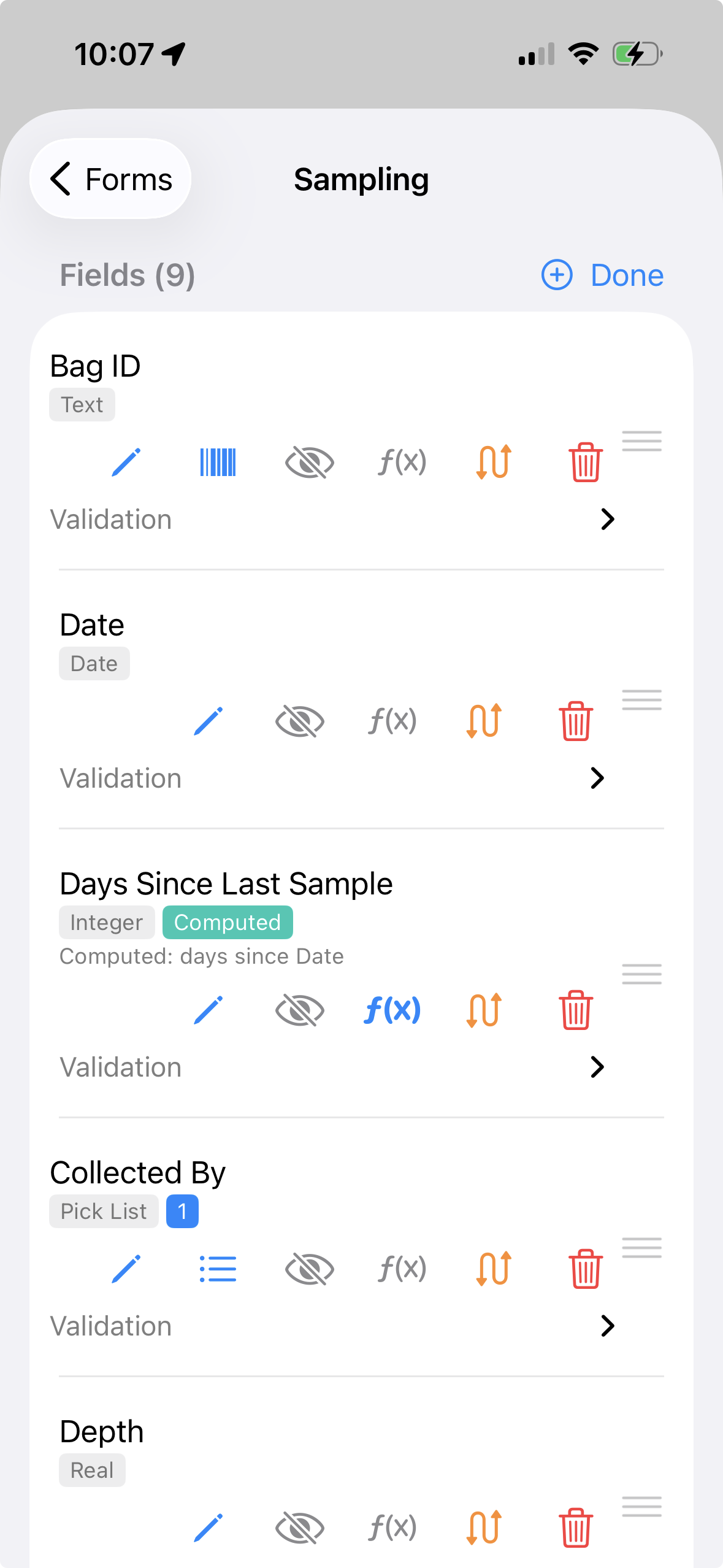
Some form values should not be typed by hand at all. GoGIS forms can include calculated fields that read values from the current form, the base feature attributes, or related forms attached to the same feature. That lets the form do the math while the person in the field focuses on observations.
Common formula uses include totals, rates, days since a previous visit, reference values from another form, and simple quality-control checks. Computed values are shown as read-only results so they are not accidentally overwritten during data entry.
Example: Calculate Total Spray Cost
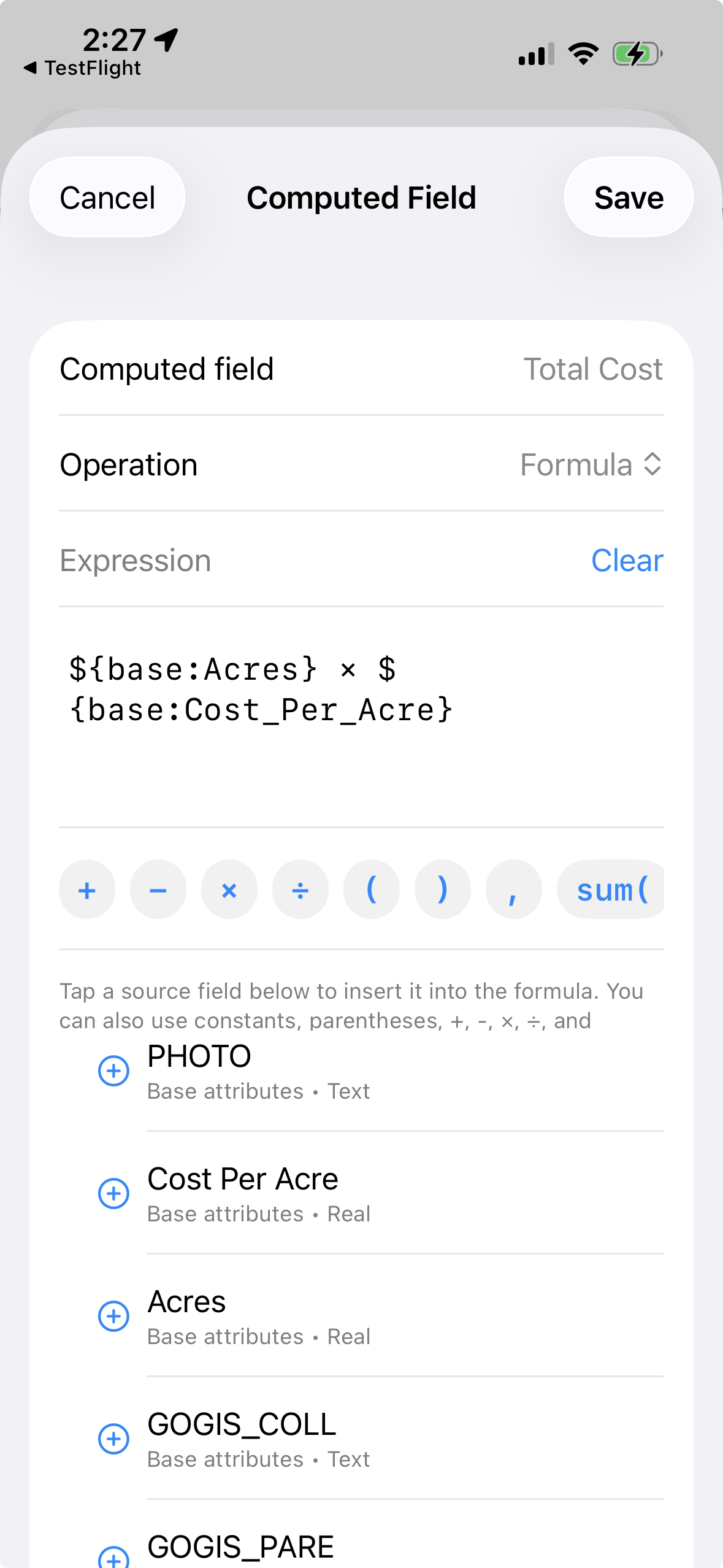
A spray record might include Acres and Cost per Acre. Instead of asking the user to multiply those numbers in the truck, add a calculated field such as:
Total Cost = Acres × Cost per Acre
The same pattern works for sample totals, quantities used, estimated costs, application rates, and any workflow where several field values combine into one result.
Example: Days Since Last Inspection
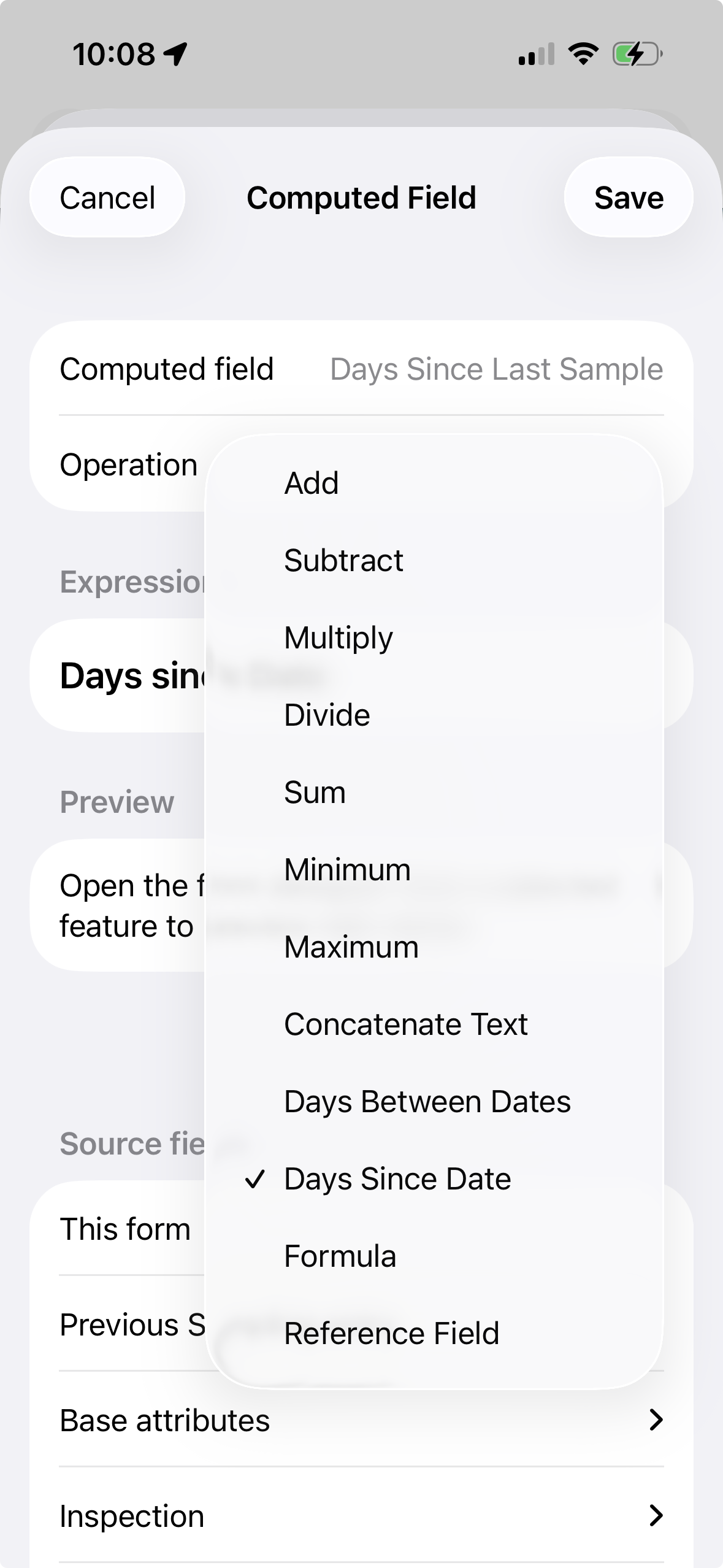
A form can compare a date field from a previous related record to the current date. For example, an inspection workflow might calculate how many days have elapsed since the last visit with a Days Since calculation:
Days Since Last Inspection = Days Since Previous Inspection Date
That value can be displayed directly, used in a report, or paired with Field Rules so the form only asks follow-up questions when enough time has passed.
Show or Hide Fields with Rules
Good field forms should not ask every possible question every time. Field Rules let a form stay short until a particular answer makes more fields relevant. Rules are available on Related Forms in Manage Related Forms.
How to set a rule in the app
- Open Manage Related Forms, then open the form and edit its fields.
- On the field that should appear only sometimes, tap the eye-slash icon to open Field Rules.
- Turn on Show only when condition is true, pick the source field (for example Status), choose an operator (equals, greater than, contains, and so on), and enter the value (for example Damaged).
- Optionally turn on Required when condition is true so follow-up fields become required only when they are relevant.
- Save. When someone fills the form, fields appear, hide, and change required state live as answers change.
Each rule uses one condition on one source field. Add the source field on the form first. Do not use the f(x) button for visibility — f(x) is only for calculated values.
Example: Hide a Follow-Up Section Until Enough Days Have Passed
Suppose a site only needs a follow-up inspection every 30 days. The form can calculate Days Since Last Inspection with f(x), then use Field Rules to hide follow-up questions until that value is 30 or greater. The crew still sees the status, but they do not have to work through questions that are not due yet.
Example: Branch from a Pick List
Pick lists are also useful for driving the rest of the form. If Issue Type is set to Leak, Field Rules can show fields for flow, wet area, and repair priority. If the user chooses Vegetation, other rules can show species, height, and treatment fields. The result is one flexible form that still feels simple on a phone.
Edit Existing Attributes
Forms aren't just for new data. Tap any existing feature on the map to open its attributes and edit them directly. Imported a shapefile from the office and need to update field conditions? Tap the feature, change the values, and save. Need to add photos or a signature to a record that was started earlier? Open it and pick up where you left off. Every edit is saved locally and included when you export.
Why Forms Beat Spreadsheets in the Field
You could hand your crew a phone with a spreadsheet app and tell them to fill in rows. Here's why that doesn't work well:
- No input validation — a spreadsheet accepts anything in any cell. A pick list only accepts valid values.
- No spatial link — a spreadsheet row has no connection to a point on the map unless someone manually enters coordinates.
- No photo attachment — photos end up in the camera roll with no link to the record they belong to.
- No guided logic — a spreadsheet does not naturally hide irrelevant questions or calculate values from related field records.
- No offline reliability — cloud-based sheets fail when you lose cell signal. GoGIS works entirely offline.
- No barcode integration — scanning a barcode into a spreadsheet requires a separate app and manual copy-paste.
Export Your Data
Everything you collect exports cleanly. Choose shapefile, GeoJSON, CSV, or KML. Photos are bundled into the ZIP file alongside your spatial data. Open the results in QGIS, ArcGIS, Excel, or upload to your organization's GIS portal. The data arrives exactly as structured in your form — no cleanup required.
Build your first smart form in minutes
GoGIS is a one-time purchase for iPhone and iPad. No subscription, no account required.
Get GoGIS on the App Store