New to GIS Files? Start Here
Someone has sent you a GIS file. Maybe it's a shapefile from the county, a KML from Google Earth, or a GeoPackage from a consultant. The names are confusing, and there seem to be a dozen formats.
Here's the good news: they are all the same idea. Every GIS file holds two things:
- Shapes on a map — points, lines or areas, each in its real place on the Earth.
- A table about those shapes — one row for each shape, with columns like owner, crop, acres or date.
That's it. Once you see a GIS file as a map with a spreadsheet behind it, every format makes sense.
The Shapes: Points, Lines and Areas
GIS people call each shape a feature. There are only three kinds:
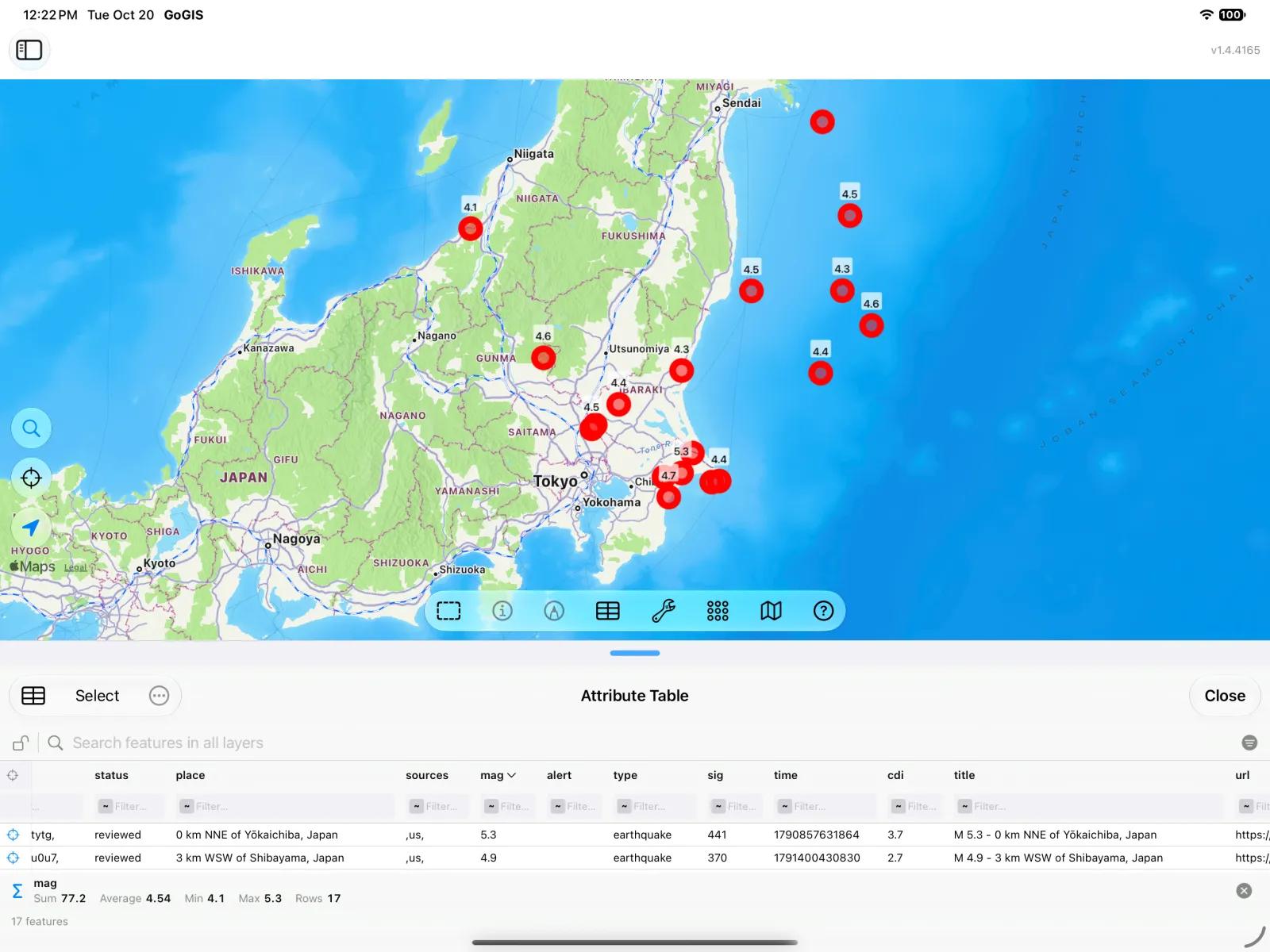
- Points — one spot. A well, a sample site, a fire hydrant, an earthquake.
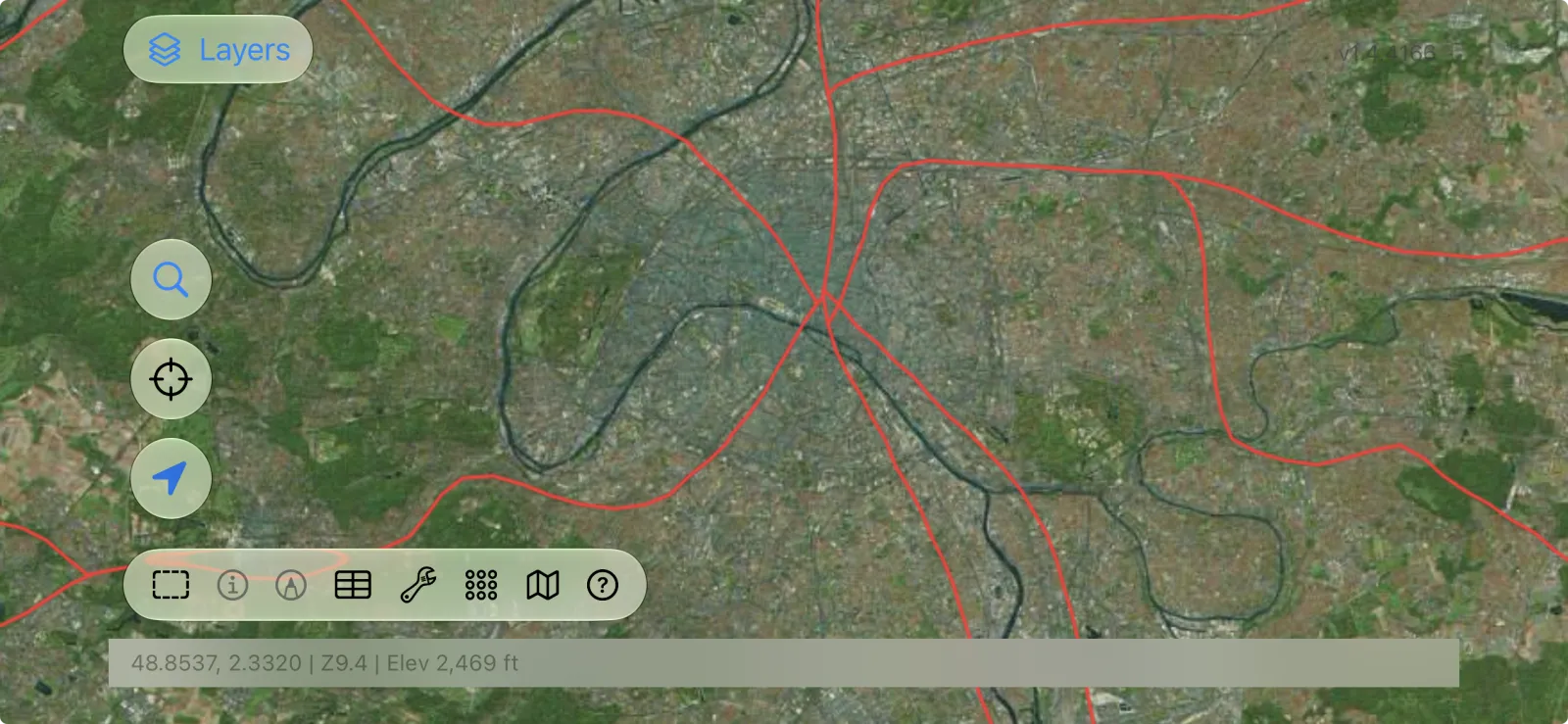
- Lines — a path. A road, a river, a pipeline, the track you walked with your GPS.
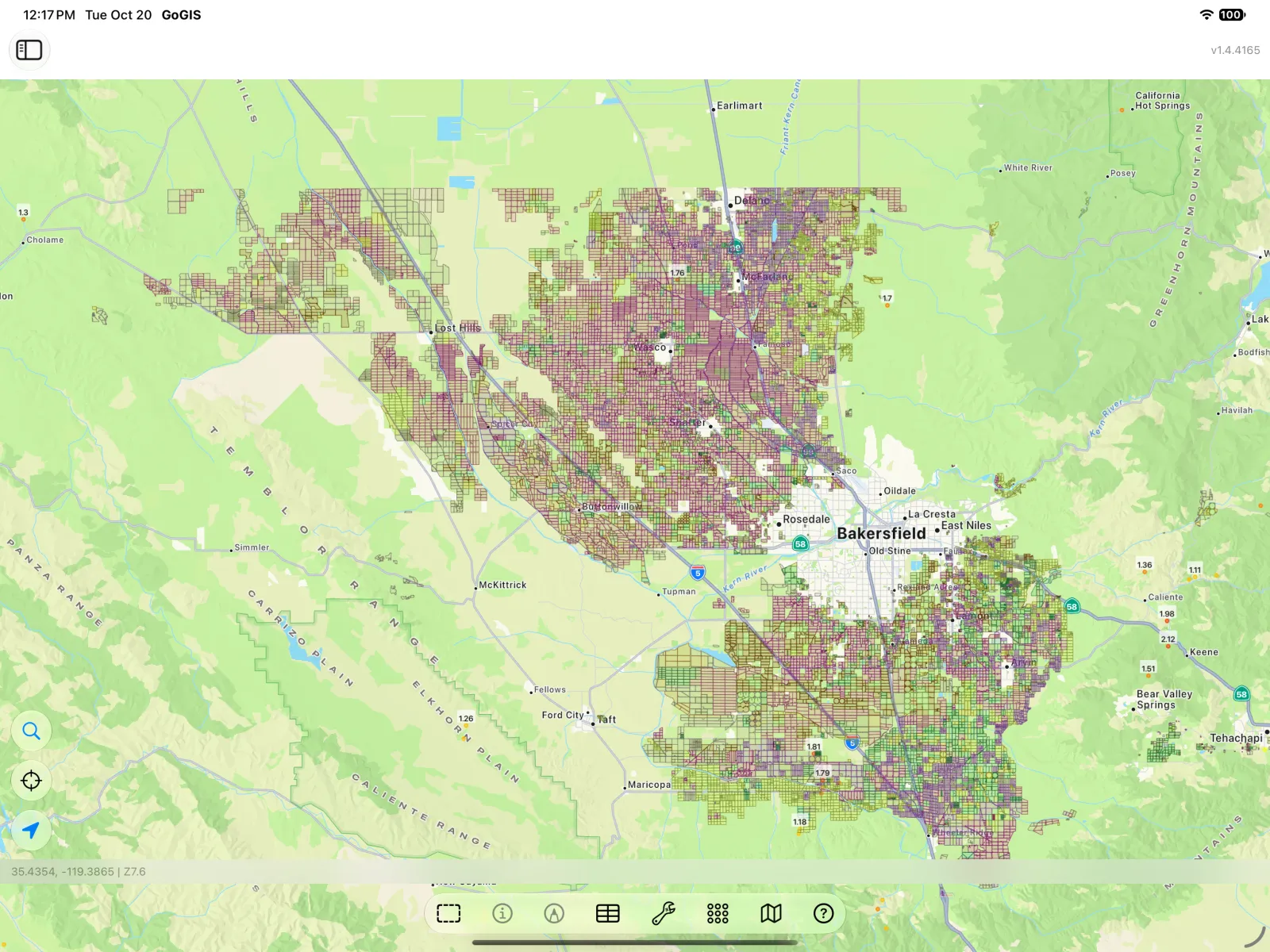
- Areas (GIS people say polygons) — a boundary with an inside. A property parcel, a farm field, a flood zone, a lake.
A layer usually holds one kind: a layer of wells, a layer of roads, a layer of parcels. In GoGIS, every file you open becomes a layer on the map, and you can stack as many as you like.
The Table: Where the Information Lives
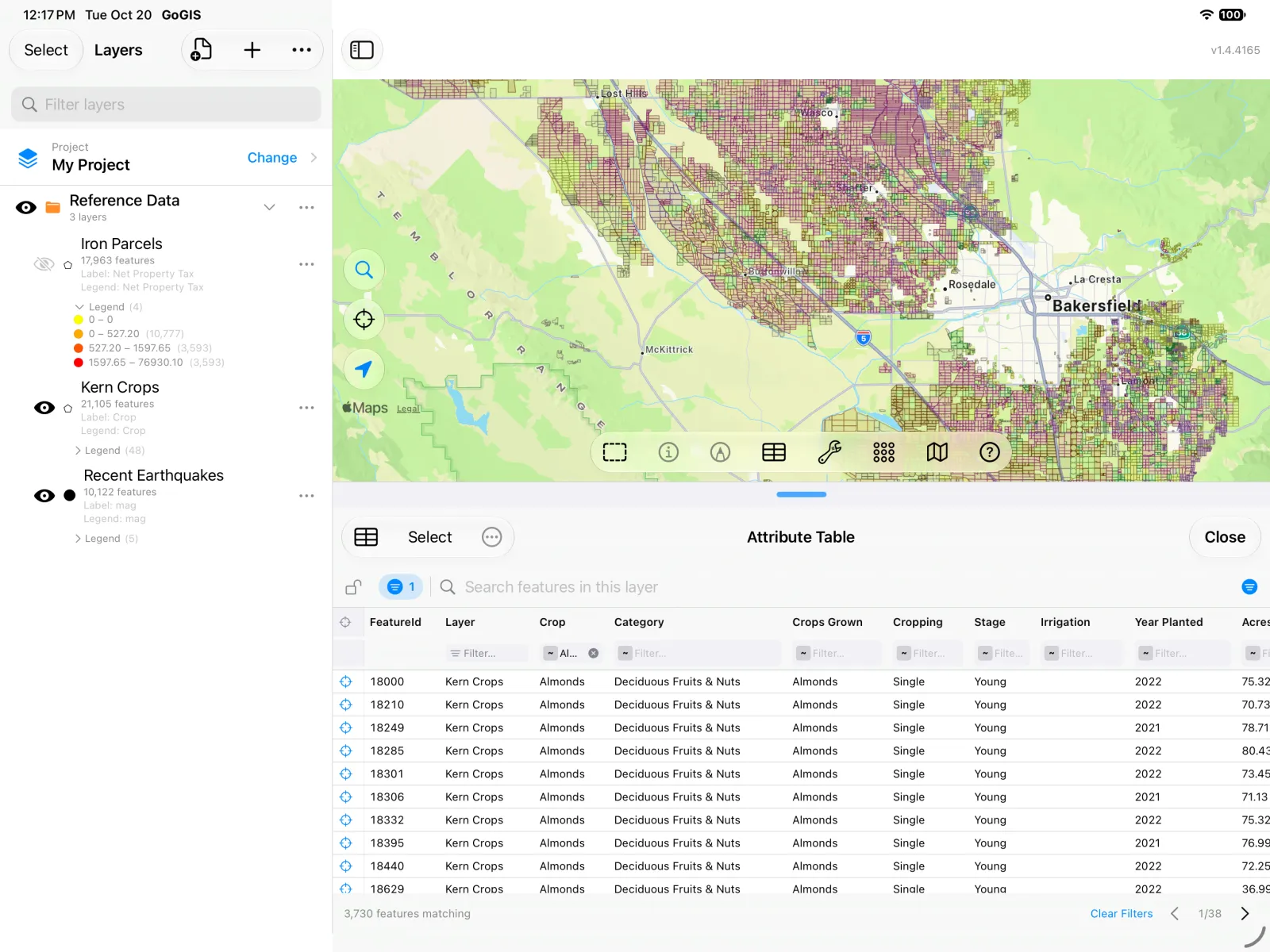
The shapes show you where. The table tells you what. It's called the attribute table, and it works like a spreadsheet:
- Each row is one feature — one field, one parcel, one earthquake.
- Each column is one attribute — one fact about every feature, like its crop, its owner or its magnitude.
- A column holds one kind of value: text (a name), numbers (acres, dollars) or dates.
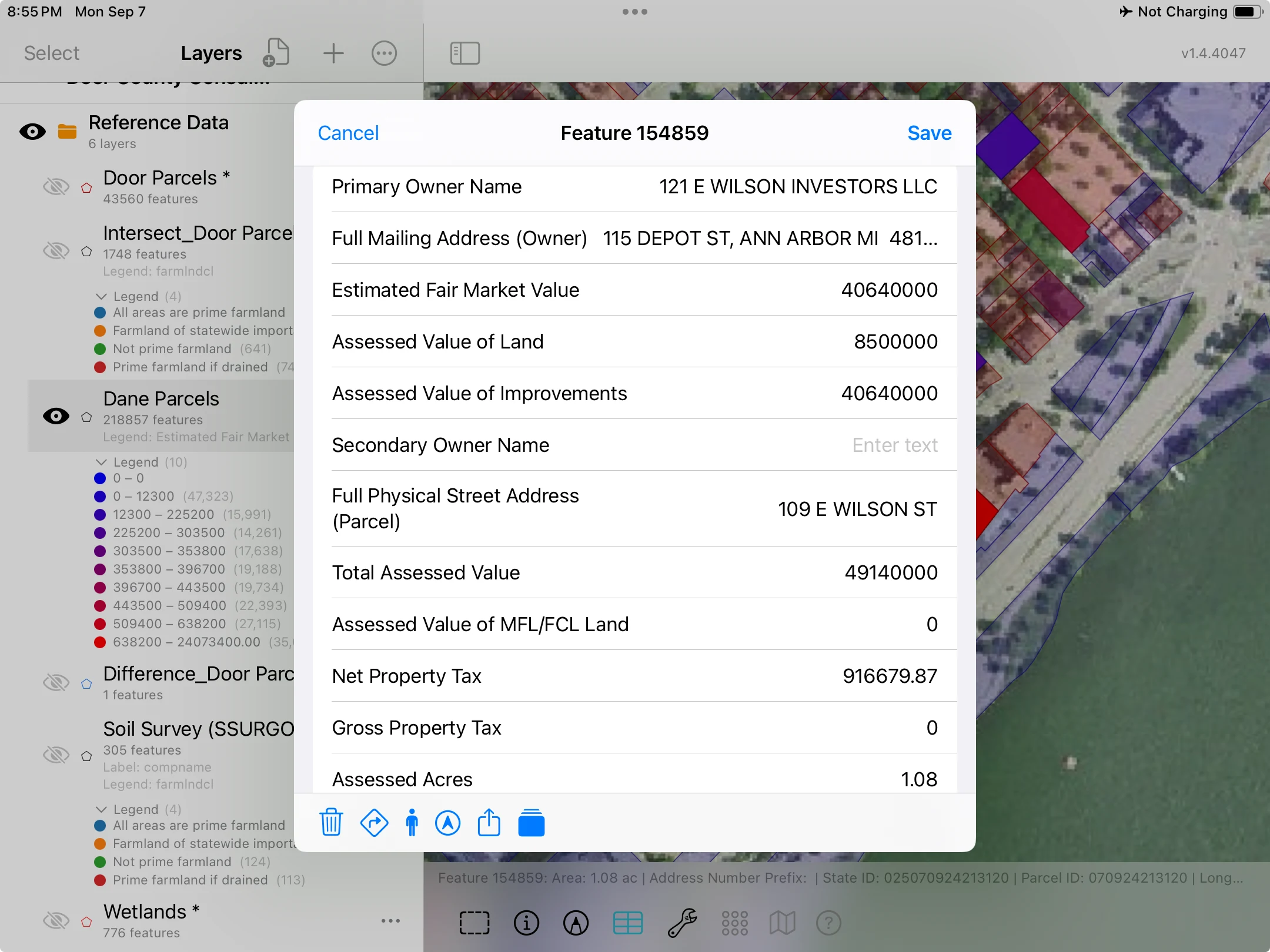
The table is different for every file, because the person who made it chose the columns. A parcel file has owners and assessed values. A crop file has crops and acres. An earthquake feed has magnitudes and depths. Some files have fifty columns; a KML from Google Earth might have just a name and a description.
To see one feature's row, tap it on the map. GoGIS shows every column for that one feature.
To see the whole table, tap the … beside the layer in the Layers panel and choose Attribute Table. Now every feature is a row, and you can search, sort and filter them like a spreadsheet.
Same Idea, Different Packaging
So why are there so many formats? Mostly history: different programs and different organizations each came up with their own way to store shapes and a table. Inside, they hold the same two things. Here are the ones you're likely to meet, all of which GoGIS opens:
- Shapefile (a .zip file) — the old standard, and still what most counties, utilities and government agencies hand out. It's really several files zipped together; more on that below.
- GeoPackage (.gpkg) — the modern replacement. A single file that can hold several layers, with none of the shapefile's odd limits.
- KML and KMZ — from Google Earth and many web maps. A KMZ is a zipped KML, sometimes with pictures inside.
- GeoJSON (.geojson or .json) — popular with websites and live data feeds. The earthquakes above come from one.
- GPX — tracks and waypoints from a GPS unit or a hiking app.
- CSV — an ordinary spreadsheet with latitude and longitude columns. Each row becomes a point.
Whichever one you have, it opens in GoGIS as a layer with an attribute table, and everything you do with it works the same way.
Why Shapefiles Look a Little Odd
The shapefile is from the early 1990s, and it shows its age in a few ways that confuse everyone the first time.
One shapefile is really several files. Each piece holds one part of the data, and they share a name:
- .shp — the shapes
- .dbf — the attribute table
- .shx — an index that helps find each shape quickly
- .prj — where on Earth the shapes belong (the coordinate system)
- Sometimes more: .cpg (which alphabet the text uses), .xml (a description of the data), and others
That's why shapefiles almost always arrive as a .zip. Keep it zipped: GoGIS opens the .zip directly. If you unzip it and send only the .shp, the rest of the data stays behind.
Shapes in the wrong place, or no information? A missing piece is usually why. Without the .prj file, GoGIS can't tell where the shapes belong, so it assumes ordinary latitude and longitude — and shapes from a county or state system can land in the wrong place. Without the .dbf, there is no table at all. Ask whoever sent the file for the complete .zip.
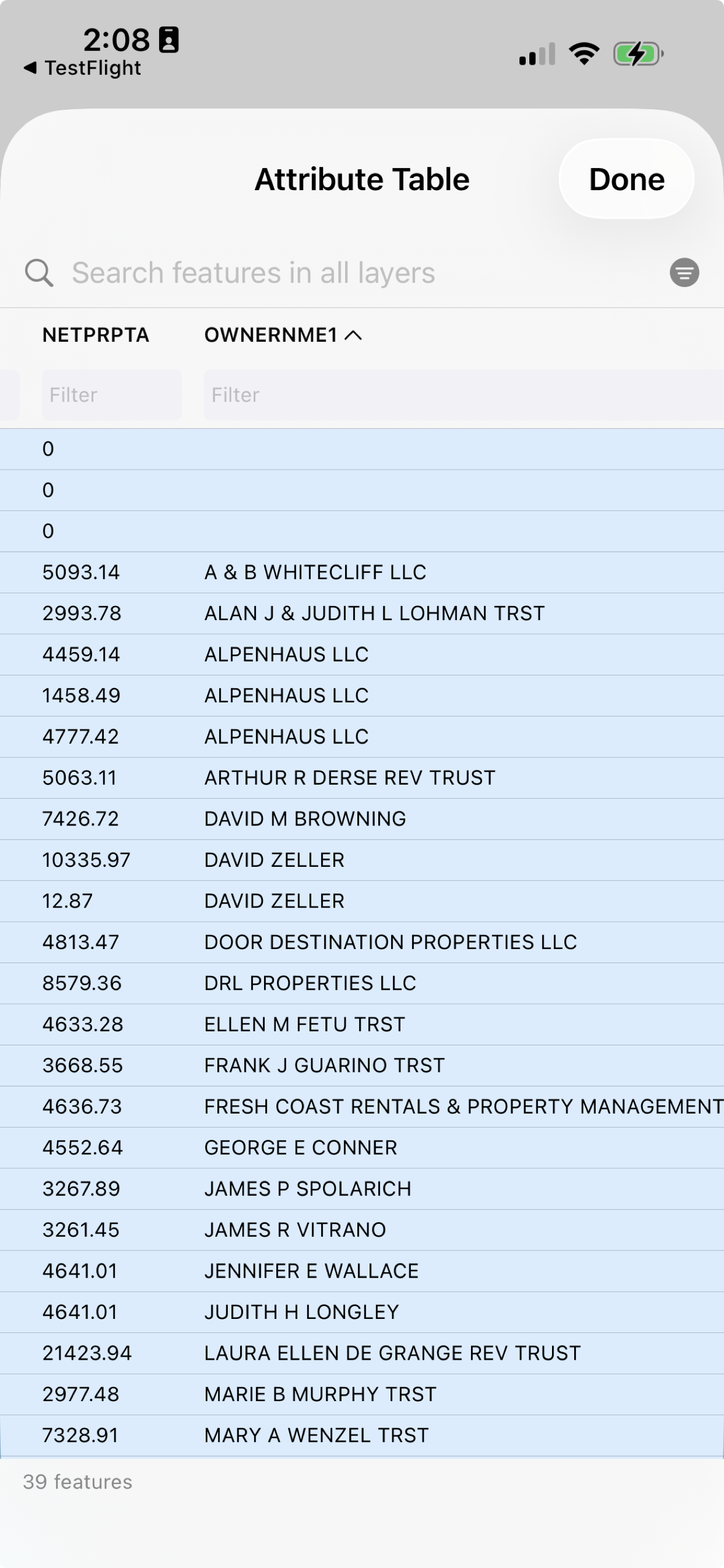
Column names are short and cryptic. A shapefile column name can be at most 10 characters long, so a column that should say Net Property Tax ends up as NETPRPTA, and Owner Name becomes OWNERNME1. It isn't a mistake; it's the format. The organization that published the file usually has a list explaining each name, often in that .xml file or on its website.
Newer formats like GeoPackage and GeoJSON don't have these limits, which is one reason they're catching on. But the idea underneath hasn't changed: shapes, and a table.
Now Do Something with It
Once you know there's a table behind the map, you can ask it questions — the same way you would a spreadsheet. How many acres of almonds are there? Who pays the most property tax in town? How strong were the recent earthquakes near Tokyo? In GoGIS you can:
- Filter the table down to the rows you care about
- Sort a column to find the biggest or the smallest
- Sum and average a number column
- Color the map by a column, so you can see the pattern
- Label the map with a column's values
- Export the rows to a spreadsheet
What Can You Do with a Shapefile, GeoPackage or KML File? shows all of it in three short walkthroughs with free public data:
- Acres of almonds in Kern County, California — filter, total, export to a spreadsheet
- Property tax in a Wisconsin town — total, sort, color the map, label it
- Recent earthquakes near Tokyo — average, strongest, labels
You don't need a file of your own to follow along. All three datasets are built into GoGIS under Reference Data: in the Layers panel, tap the import button (the document with a +) and choose Reference Data.
When you're ready to open your own file, see the guides for shapefiles, GeoPackage and KML and KMZ.