What Can You Do with a Shapefile, GeoPackage or KML File?
Someone sends you a shapefile, a GeoPackage, a KML file. You open it, and there it is on the map. Now what?
Whatever the format, the answer is the same, because every one of them is a map with a table behind it: one row per feature, one column per attribute. (New to GIS files? Start here for what that means.) Once the file is in GoGIS, you work with that table the same way. GoGIS opens these formats as layers with an attribute table:
- Shapefile (.zip with .shp, .dbf, .shx, .prj) — still the standard exchange format for counties, utilities and agencies
- GeoPackage (.gpkg) — one file that can hold many layers
- KML and KMZ — from Google Earth and many web maps
- GeoJSON — common for web services and live data feeds
- GPX — tracks and waypoints from GPS units
- CSV with coordinate columns — points from a spreadsheet
This guide uses three real examples. The data is free and public, and it looks like the files you will get from a county, a state agency or a consultant: two zipped shapefiles and a GeoJSON feed.
Get the Data: No File Needed
You don't need to find or download anything to follow along. All three datasets are built into GoGIS under Reference Data, which fetches public data straight from the agencies that publish it and imports it as an ordinary layer — the same as a file you open yourself.
To open Reference Data: in the Layers panel, tap the import button (the document with a +) and choose Reference Data. Then pick:
- California Crops (2024) → Kern, for walkthrough 1
- Wisconsin Parcels → Iron, for walkthrough 2
- Recent Earthquakes, under Global, for walkthrough 3
Reference Data has more to practice on once you're done: FEMA flood zones, SSURGO soils, wetlands, rivers and lakes, protected areas, active wildfires, and in Europe Natura 2000. See SSURGO soils and FEMA flood maps for more on those. Everything in this guide works on any of them, and on your own files.
- Kern County, California crops: how many acres of almonds are there? (filter, total, export to a spreadsheet)
- Iron County, Wisconsin parcels: who pays the most property tax in town? (total, sort, color the map, label it)
- Recent earthquakes: how strong were the quakes around Tokyo this month? (average, strongest, labels)
The screenshots are from an iPad, where the map and the attribute table sit side by side. Everything also works on iPhone, where the table opens over the map.
Before You Start: The Column Heading Menu
Most of what follows happens in the attribute table, the spreadsheet view of a layer: one row per feature, one column per attribute. Two gestures on a column heading do almost everything:
- Tap a heading to sort by that column. Tap again to reverse the order.
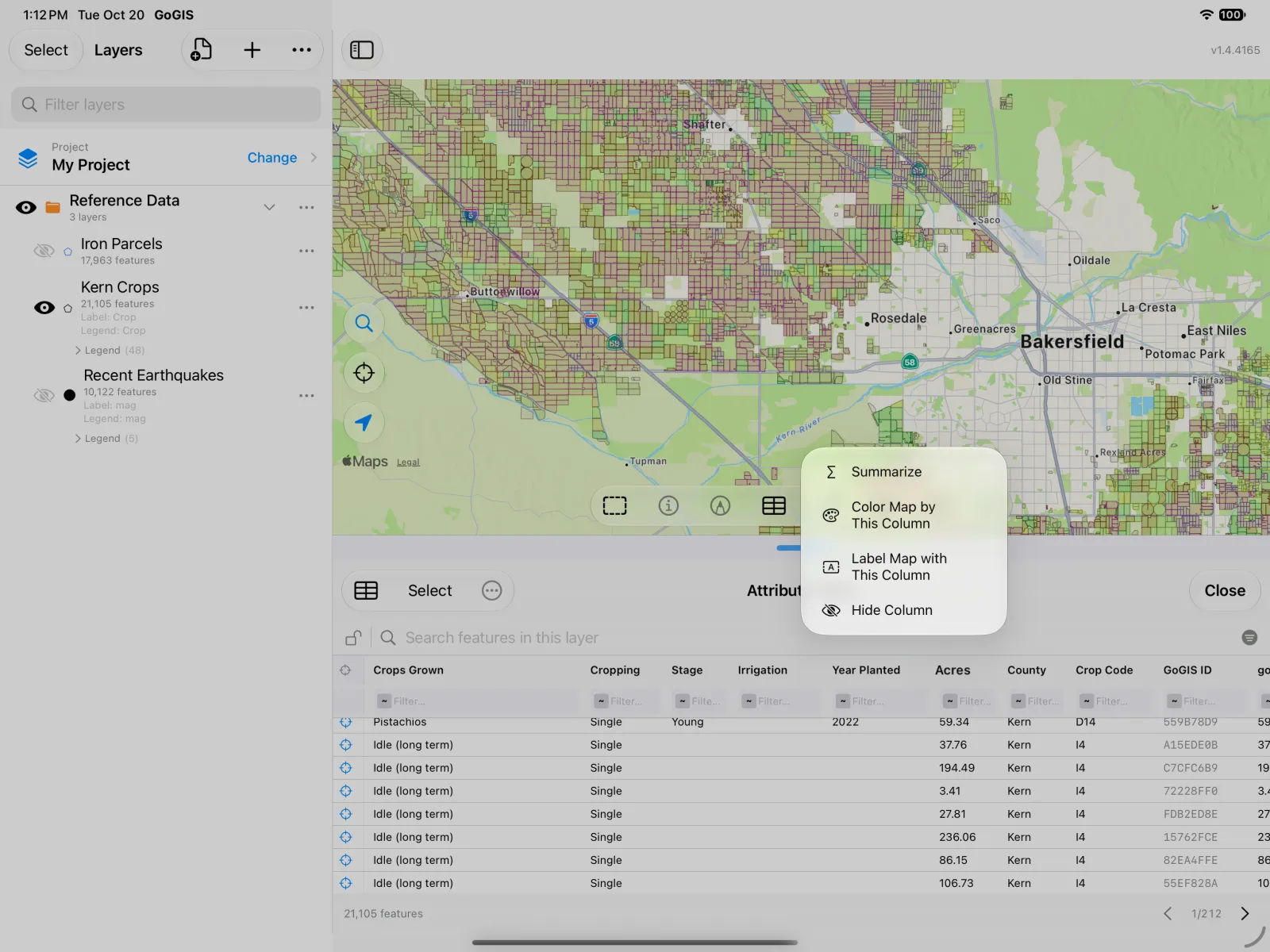
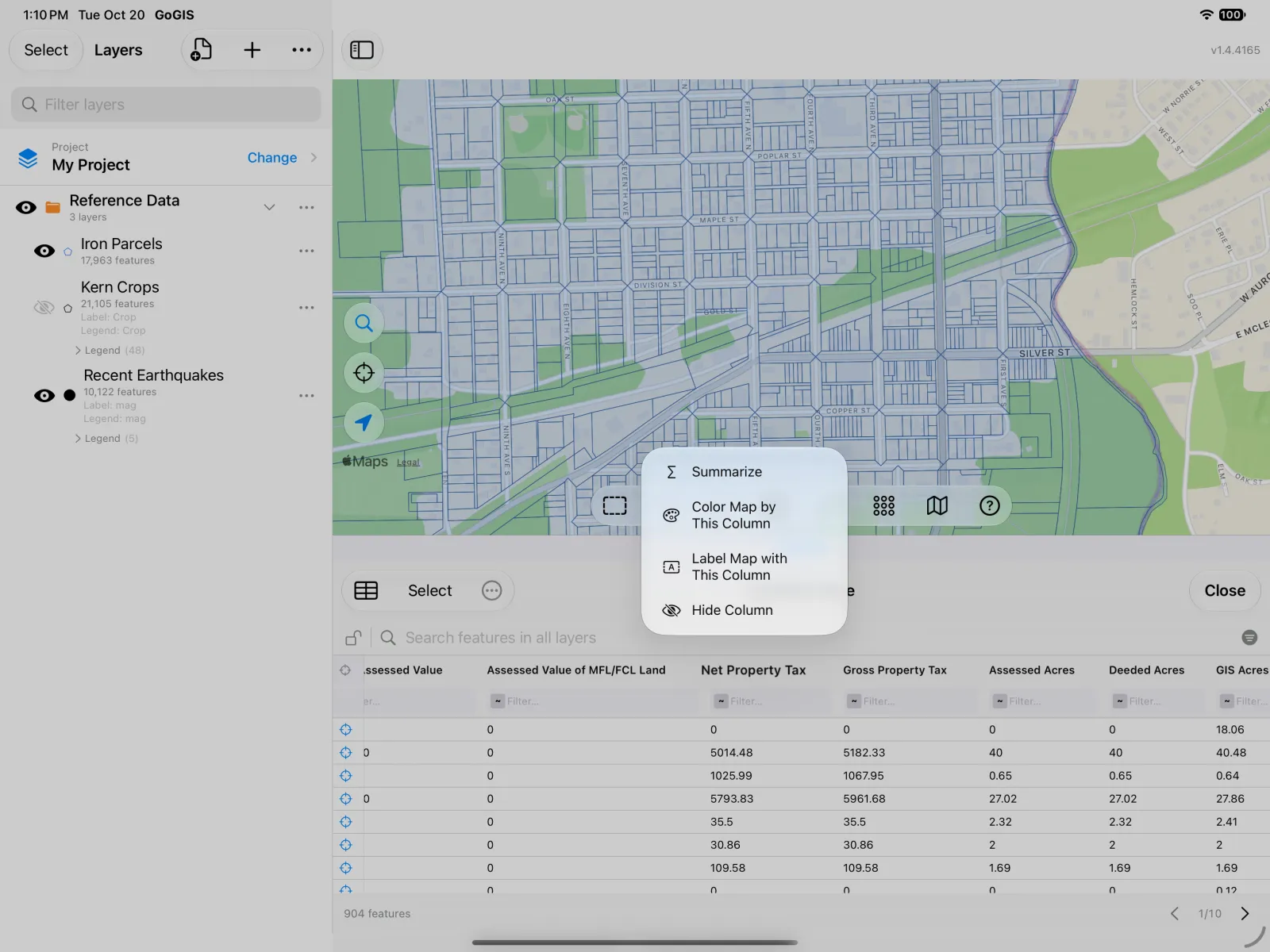
- Press and hold a heading for the column's menu:
- Summarize — sum, average, minimum and maximum of a number column, for the rows you are looking at.
- Color Map by This Column — gives the layer a legend from the column's values.
- Label Map with This Column — shows the column's values on the map.
- Hide Column — hides it from the table and from CSV exports.
Walkthrough 1: Acres of Almonds in Kern County, California
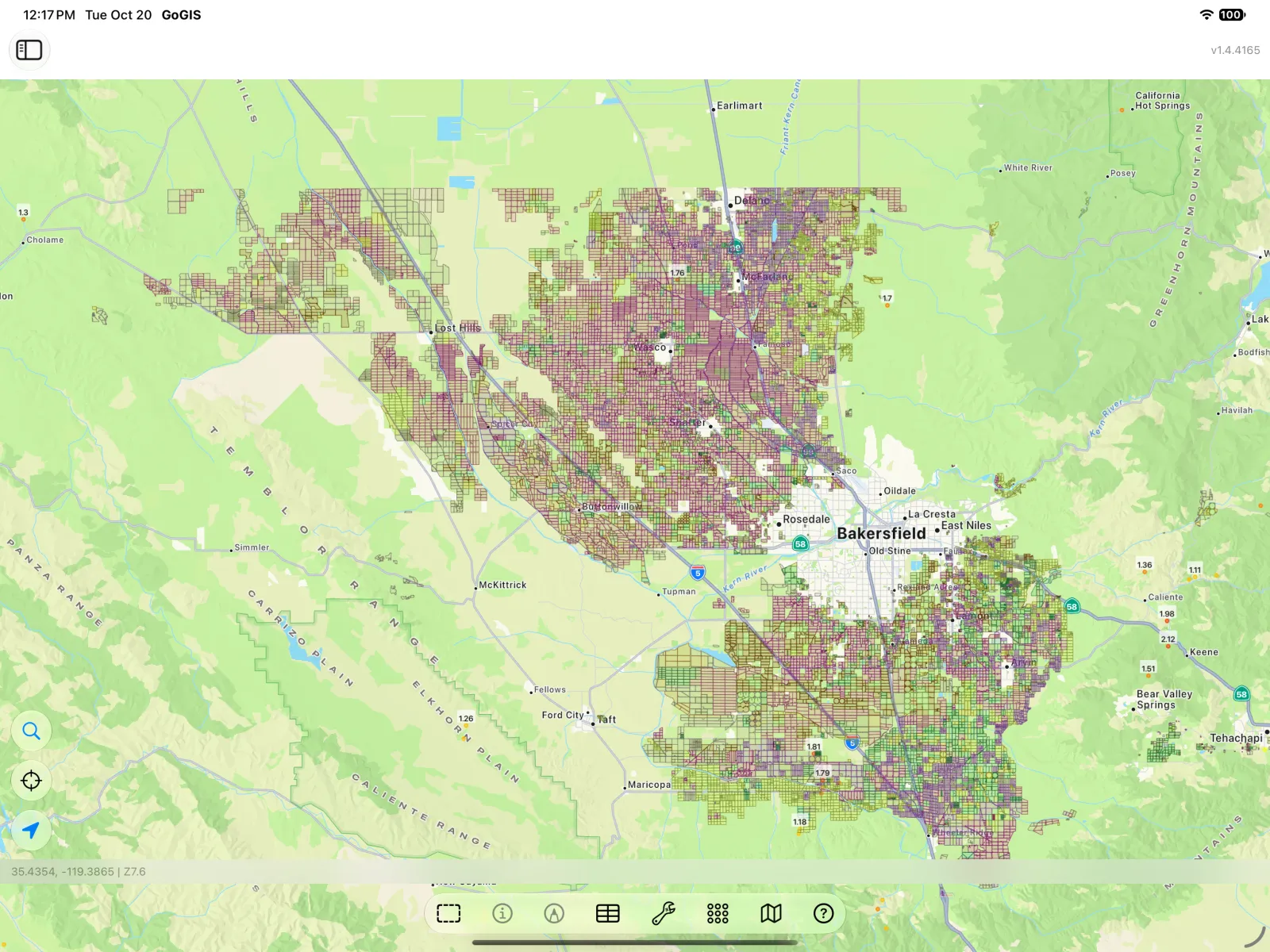
The data: the California Department of Water Resources maps every farm field in the state each year and publishes it as a zipped shapefile, with the crop grown in each field and its acreage. GoGIS downloads it for you, one county at a time.
Load it: in the Layers panel, tap the import button (the document with a +), choose Reference Data, then California Crops (2024), and pick Kern. Kern Crops arrives as a layer of 21,105 fields.
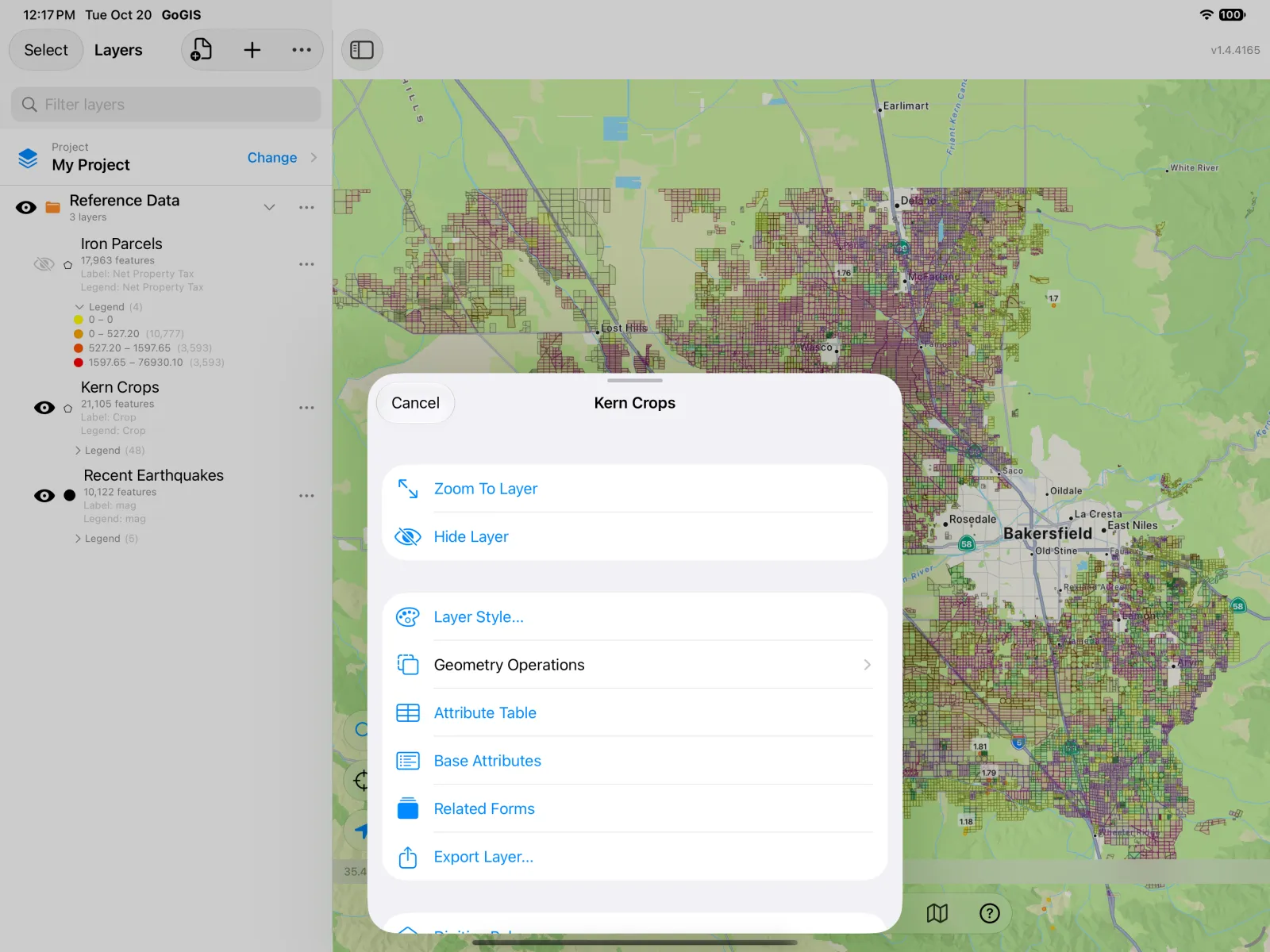
Open the attribute table: in the Layers panel, tap the … beside Kern Crops and choose Attribute Table.
Every field is a row. Press and hold any column heading to see what you can do with that column.
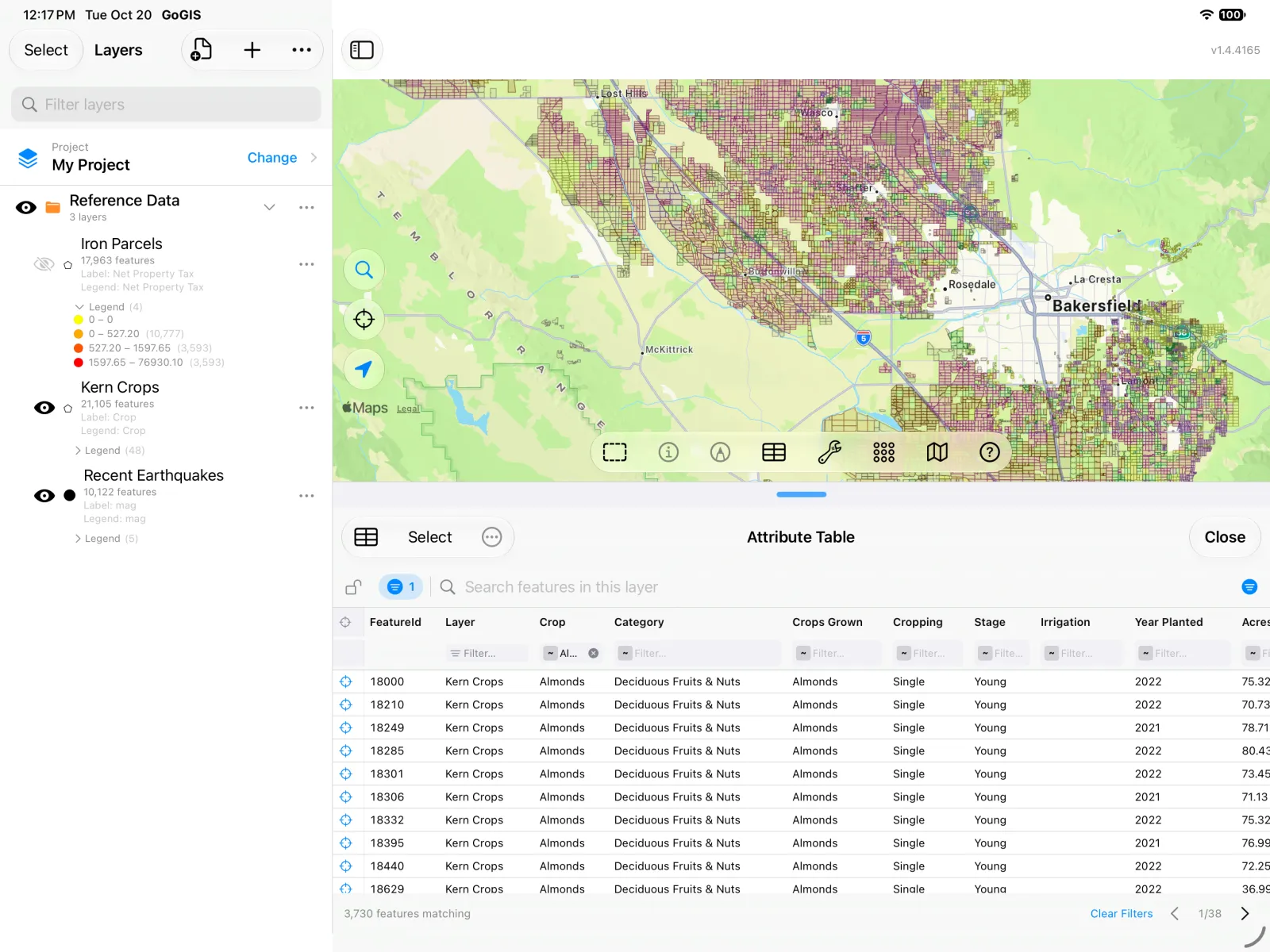
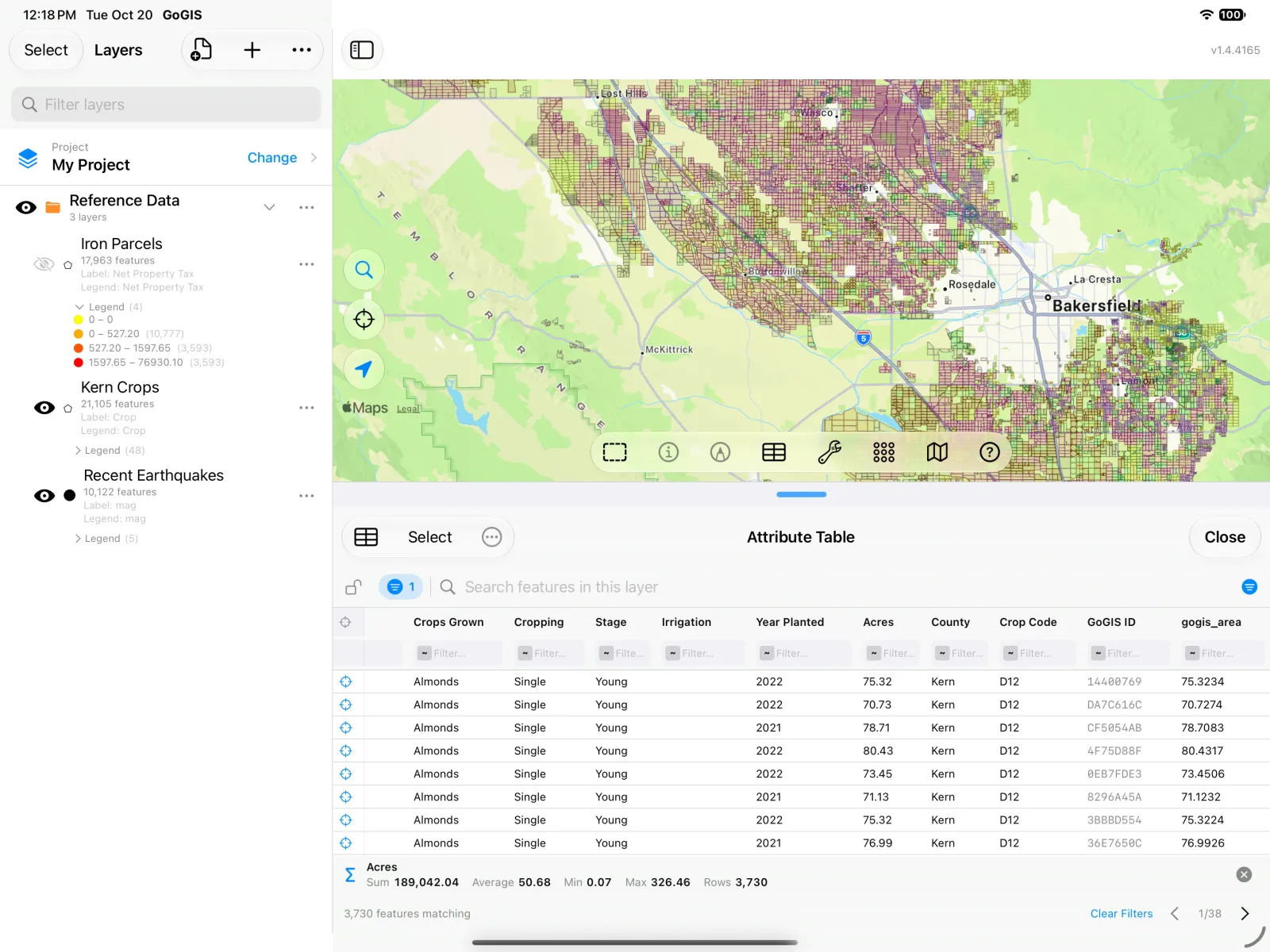
Filter to almonds: each column has a filter box under its heading. Type Almonds in the Crop filter. The table drops from 21,105 fields to the 3,730 almond orchards.
Total the acres: press and hold the Acres heading and choose Summarize. A bar under the table answers the question: 189,042 acres of almonds in Kern County, an average orchard of 50.68 acres, the largest 326.46. The summary covers every matching row, not just the page on screen, and it updates as you change the search or the filters.
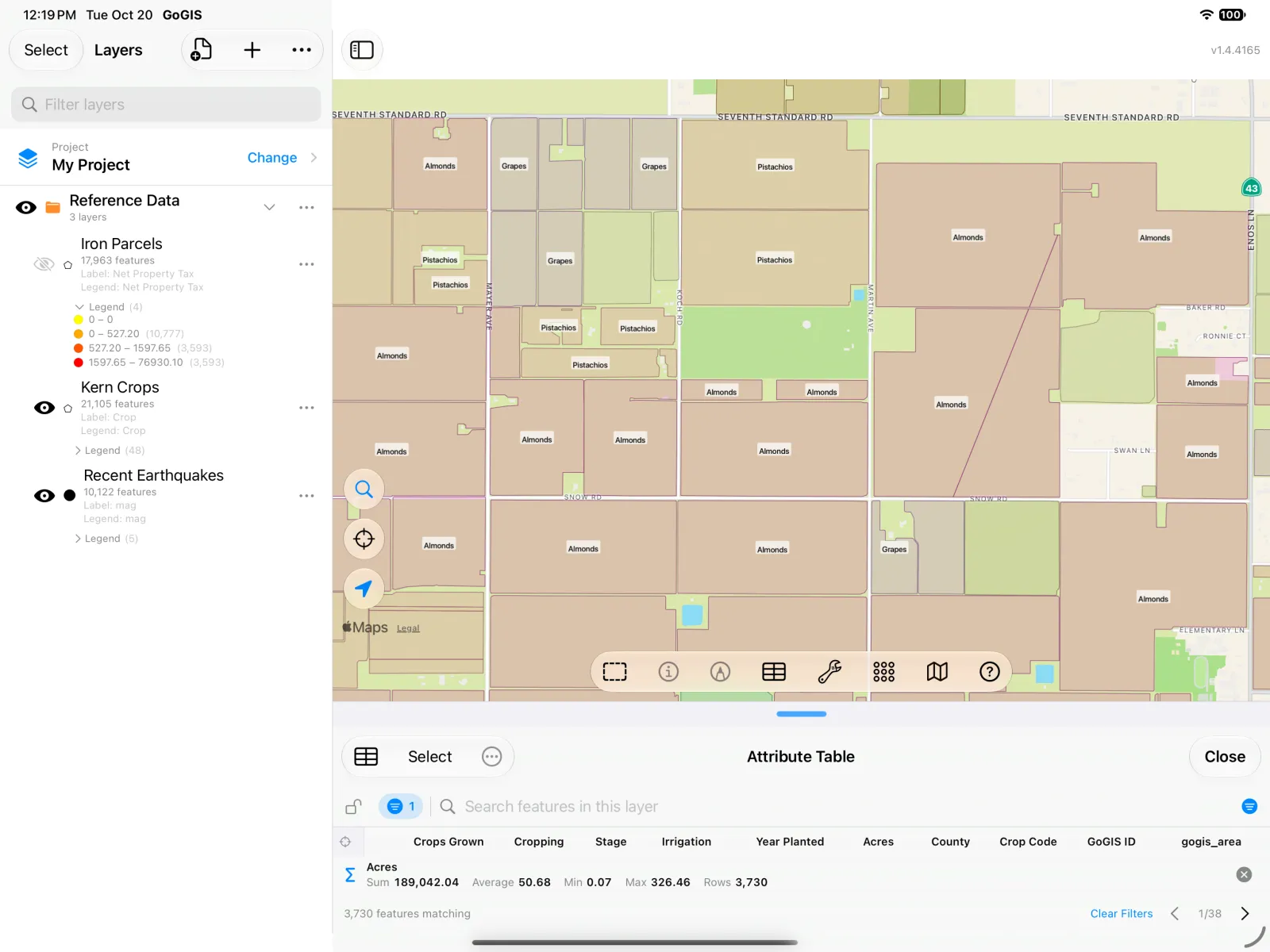
See it on the ground: zoom in on the map. With the layer labeled by crop (press and hold Crop, then Label Map with This Column), each field shows what grows there: almonds next to pistachios and grapes.
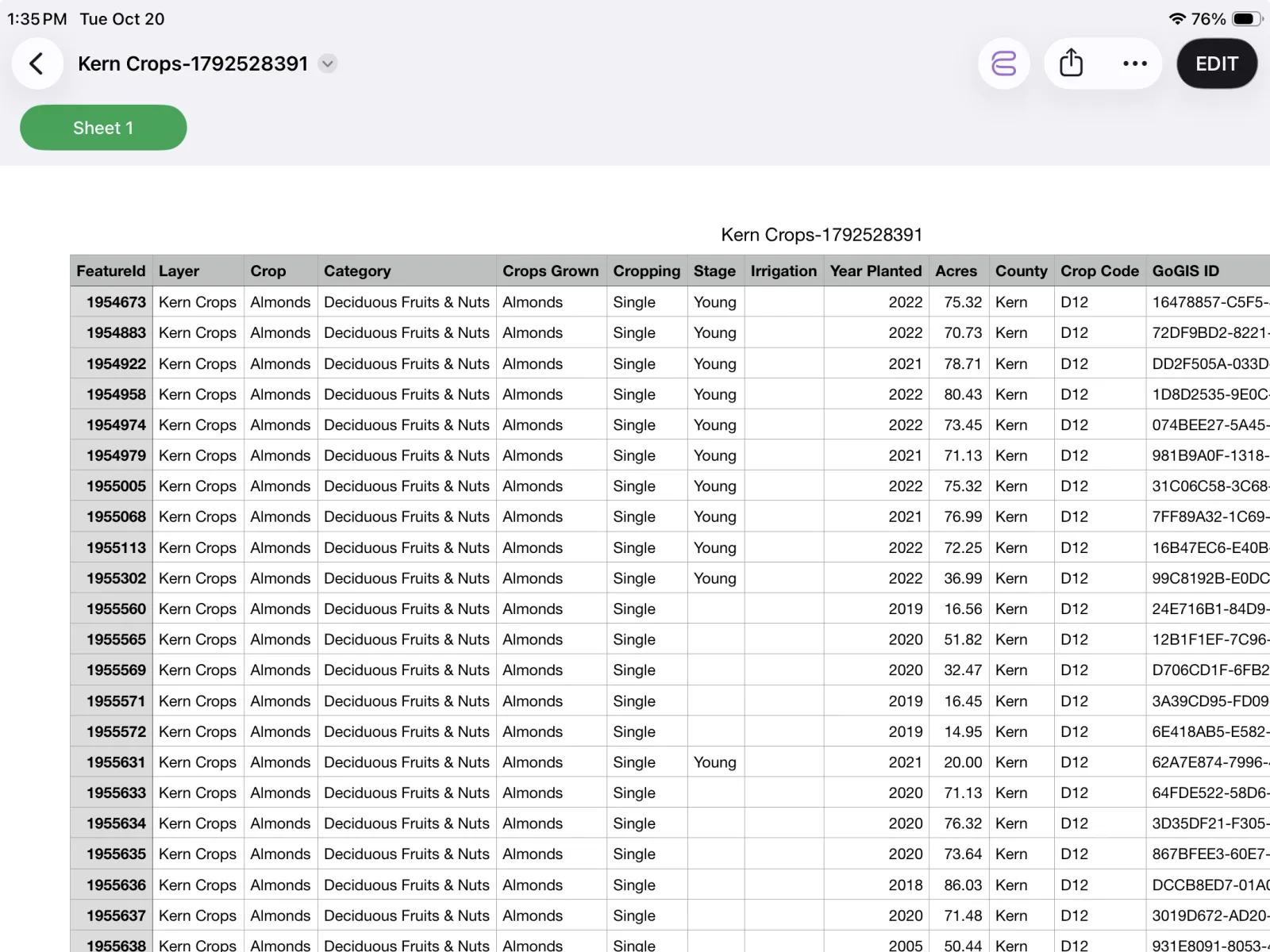
Take it with you: tap the table icon at the top left of the attribute table to export the rows as a CSV file. The export holds every row that matches your filters, in your sort order, with the columns you have showing — so hide the ones you don't need first. Save it to Files and open it in Numbers, Excel or Google Sheets, or attach it to an email.
Walkthrough 2: Property Tax in Hurley, Iron County, Wisconsin
The data: Wisconsin publishes every parcel in the state, with owner, address, assessed values and property tax, as a zipped shapefile for each county. Iron County is one of the smallest, so it downloads in seconds.
Load it: tap the import button in the Layers panel, choose Reference Data, then Wisconsin Parcels, and pick Iron. Then zoom in on Hurley, the county seat, on the Michigan border.
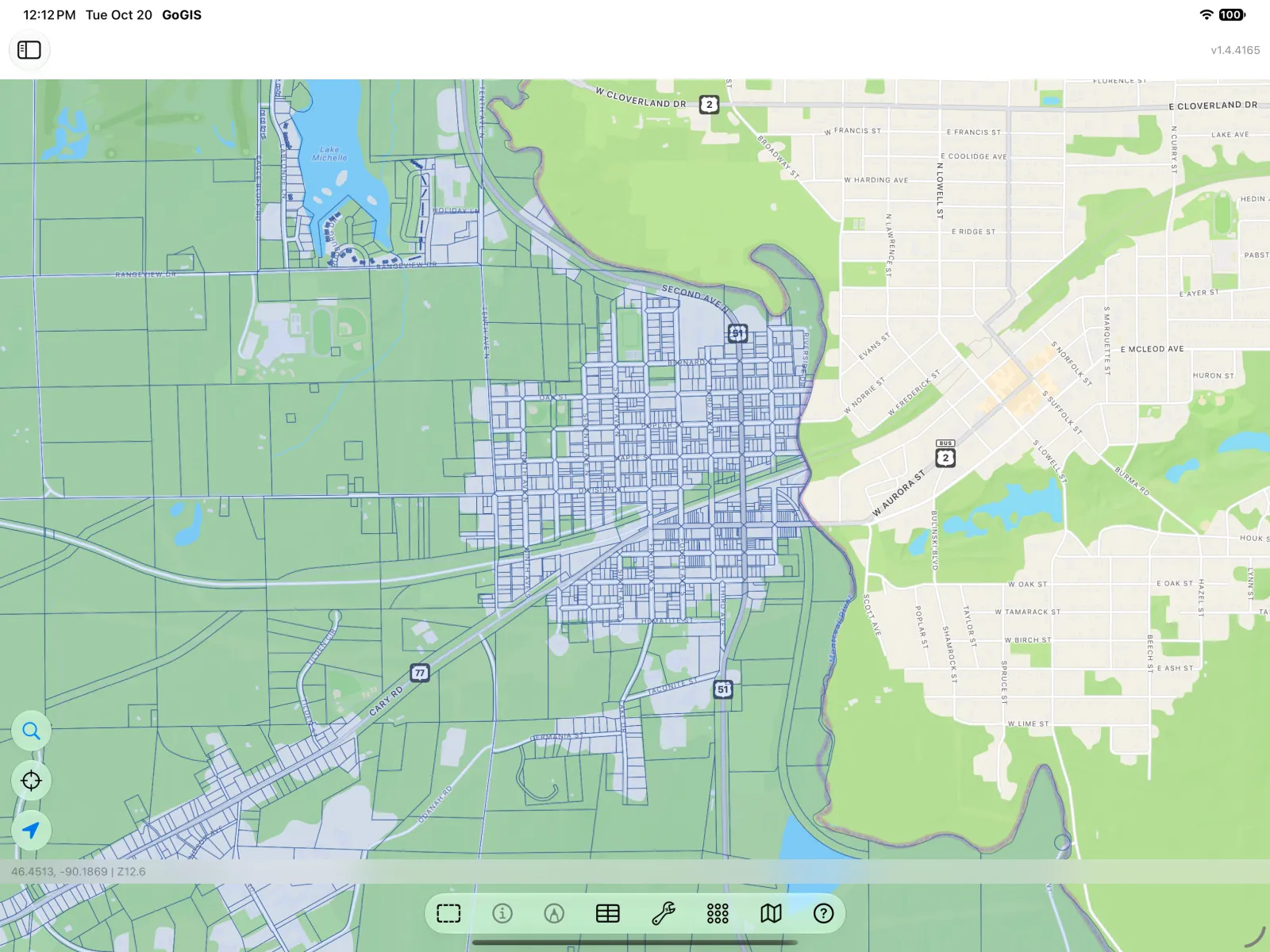
Open the table with the table button in the map toolbar. Opened this way, the table lists the features in view, so it follows the map as you pan and zoom. Press and hold the Net Property Tax heading.
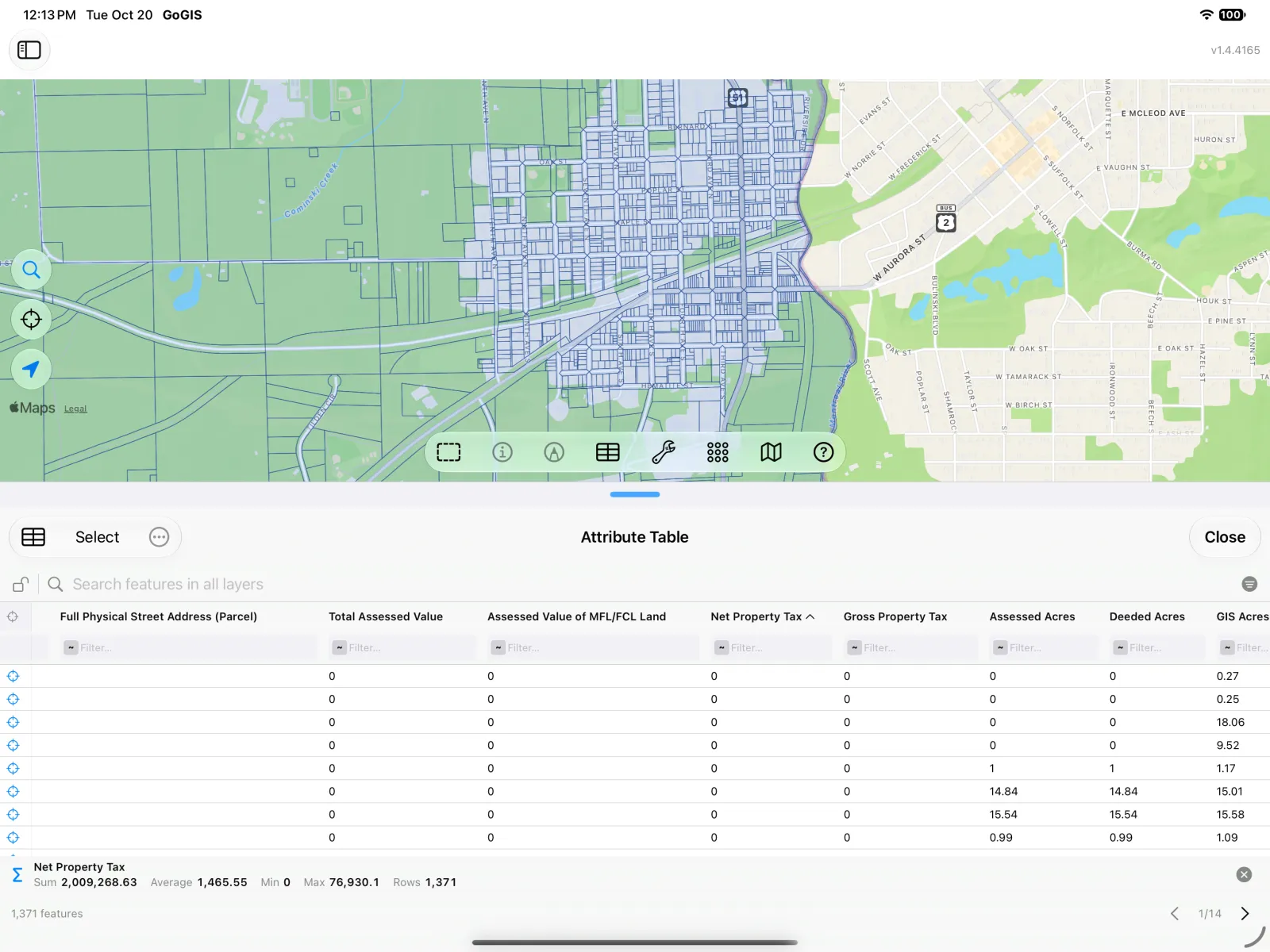
Summarize totals the tax for the parcels in view: 1,371 parcels paying $2,009,269, an average of $1,465.55.
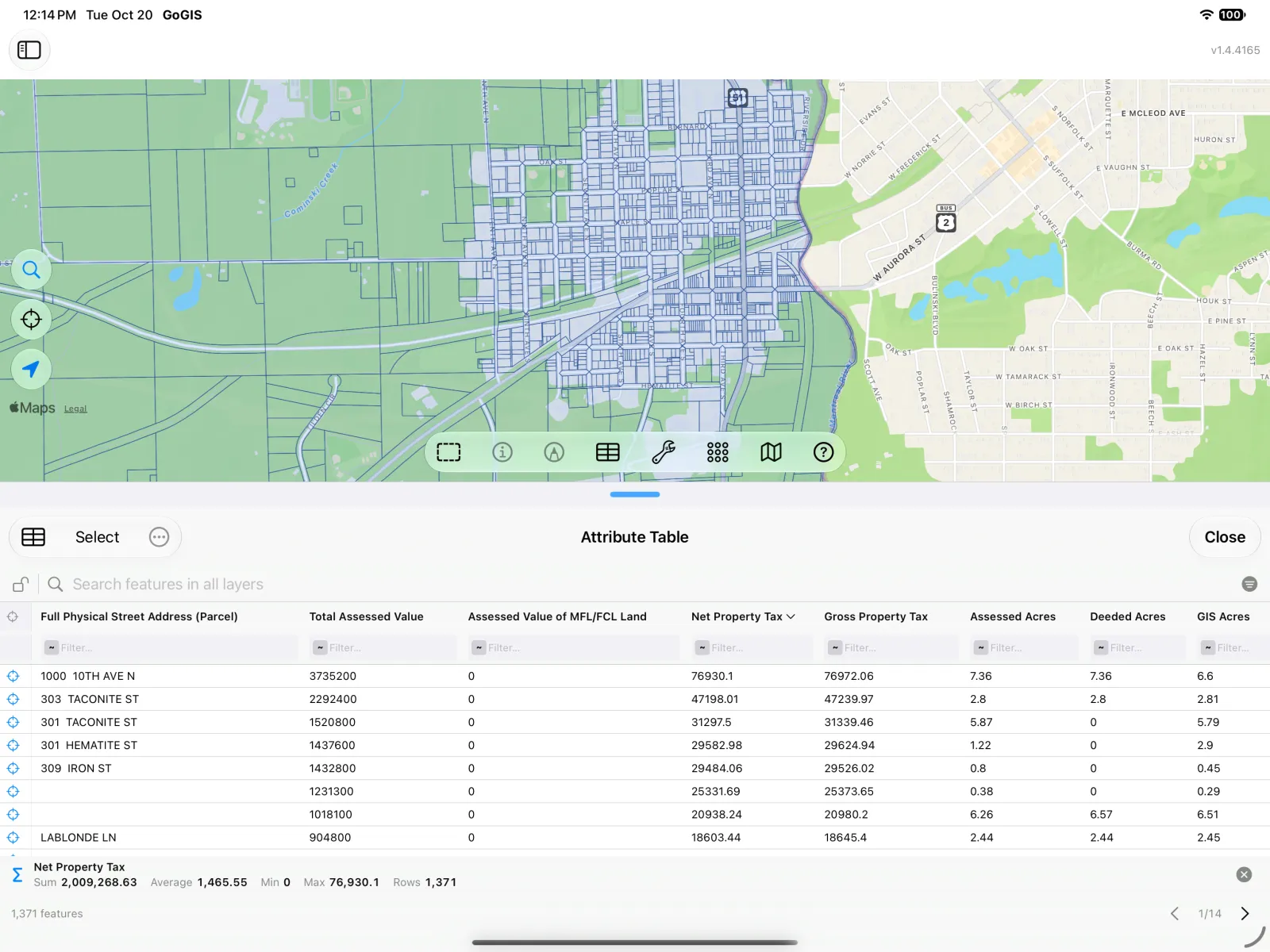
Sort it: tap the Net Property Tax heading, then tap it again for largest first. The top taxpayers come to the top of the table, with their addresses. Tap the target at the start of a row to zoom the map to that parcel.
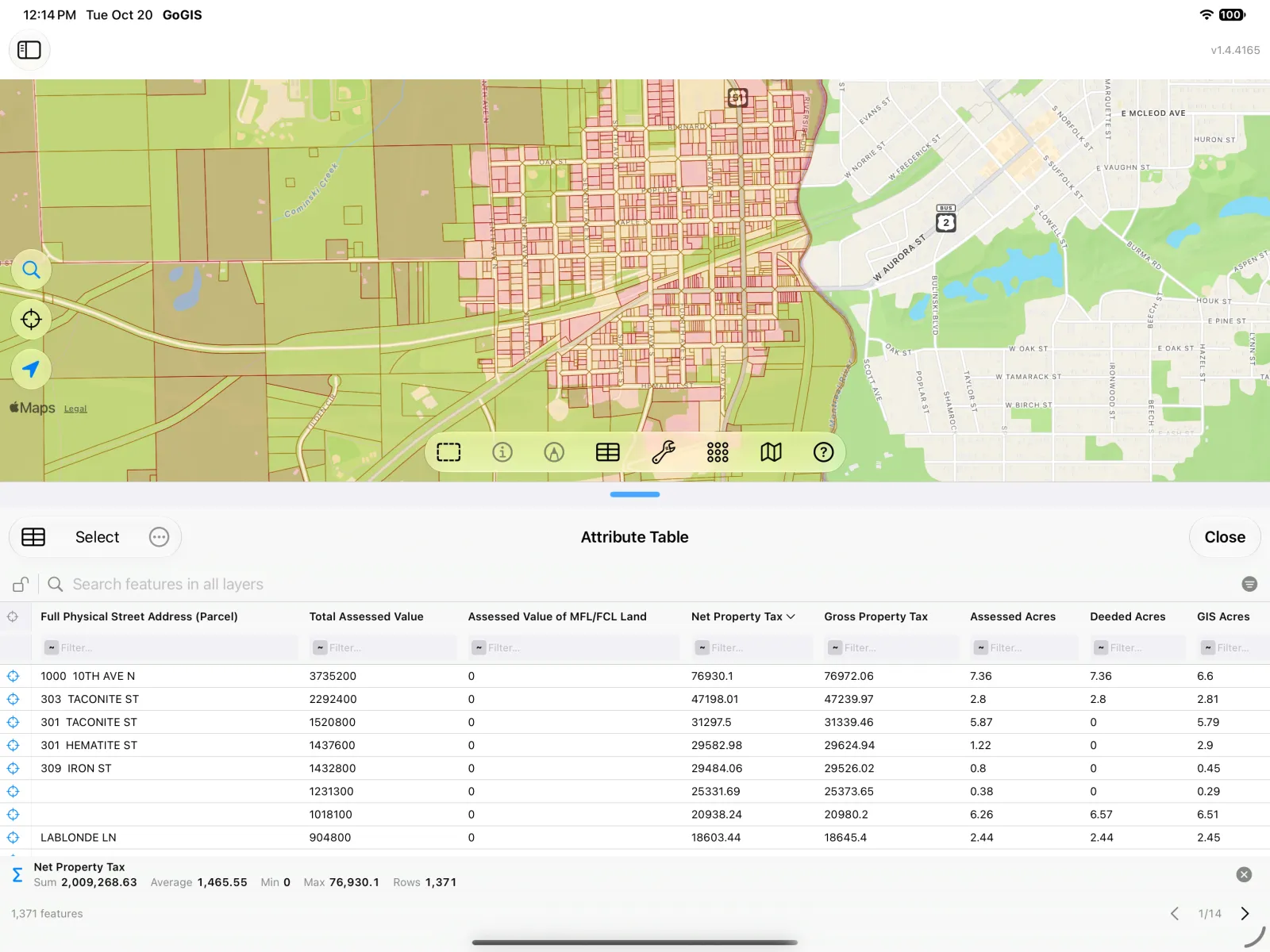
Color the map: press and hold the heading again and choose Color Map by This Column. A number column is split into bands with about the same number of parcels in each, from yellow to red, so the high-tax blocks of town stand out at a glance. The legend appears in the Layers panel, and you can fine-tune its colors and bands in the layer's style settings.
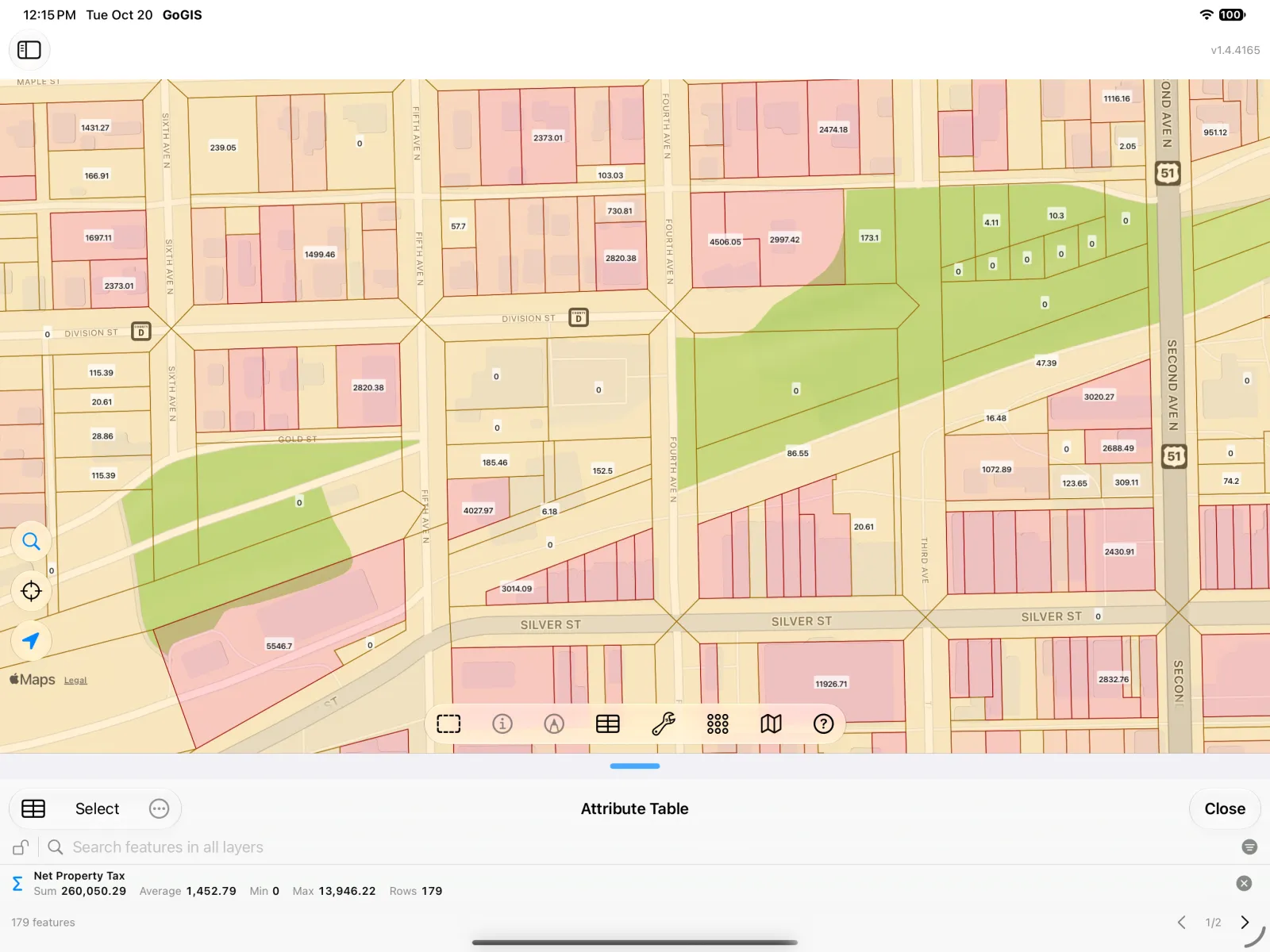
Label it and zoom in: choose Label Map with This Column from the same menu, then zoom into downtown. Each parcel now shows its tax on the map — and because the table follows the map, the summary shrinks to the 179 parcels in view: $260,050 between them.
Walkthrough 3: Recent Earthquakes near Tokyo
The data: the U.S. Geological Survey publishes every recorded earthquake worldwide as a live GeoJSON feed. It is not a shapefile, and that is the point: the same tools work on GeoJSON, KML and GeoPackage layers too.
Load it: tap the import button, choose Reference Data, and under Global pick Recent Earthquakes: the last 30 days, worldwide — around ten thousand quakes. Then zoom the map to Tokyo and open the table from the map toolbar.
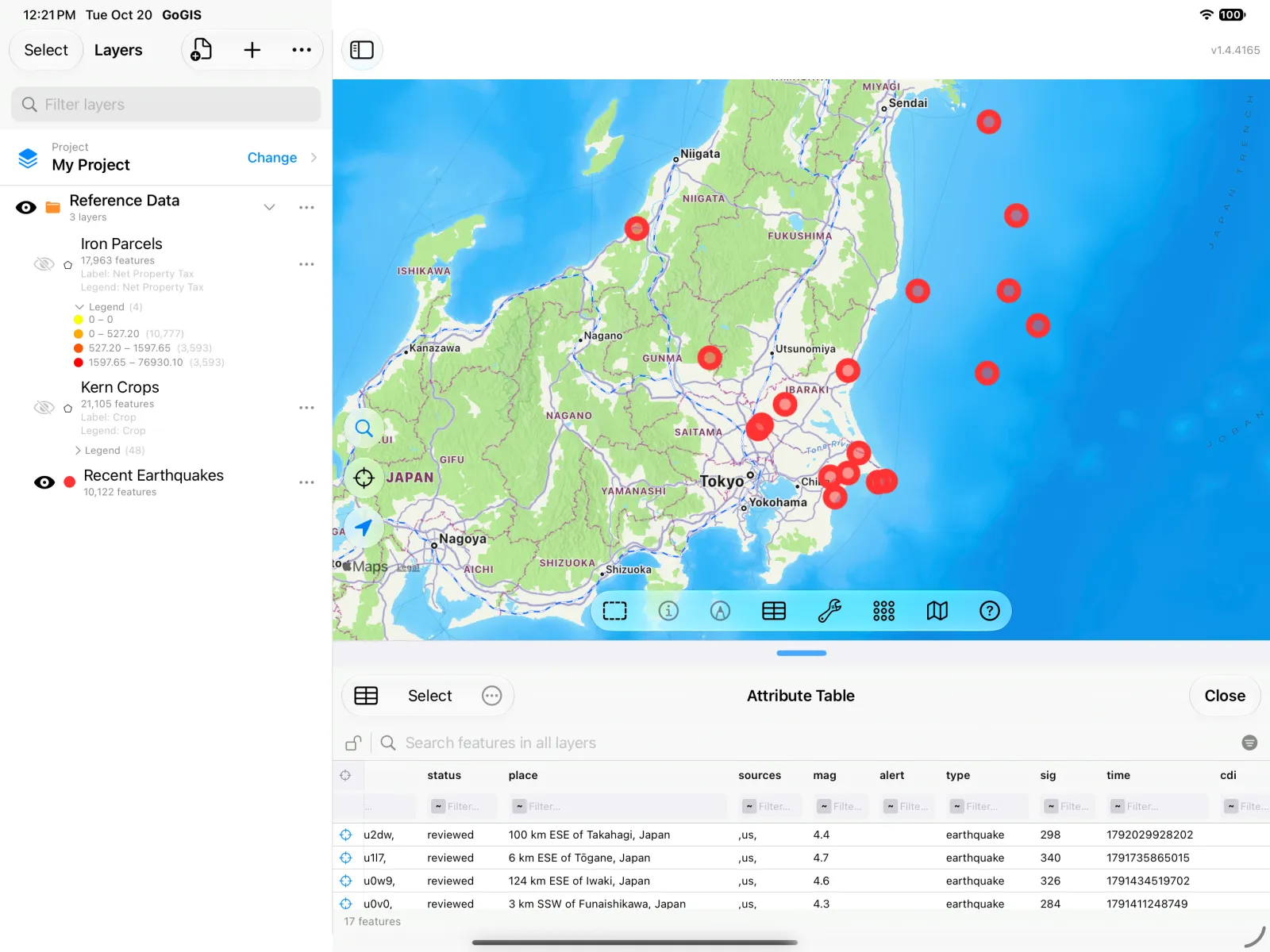
Press and hold the mag (magnitude) heading for the column's menu.
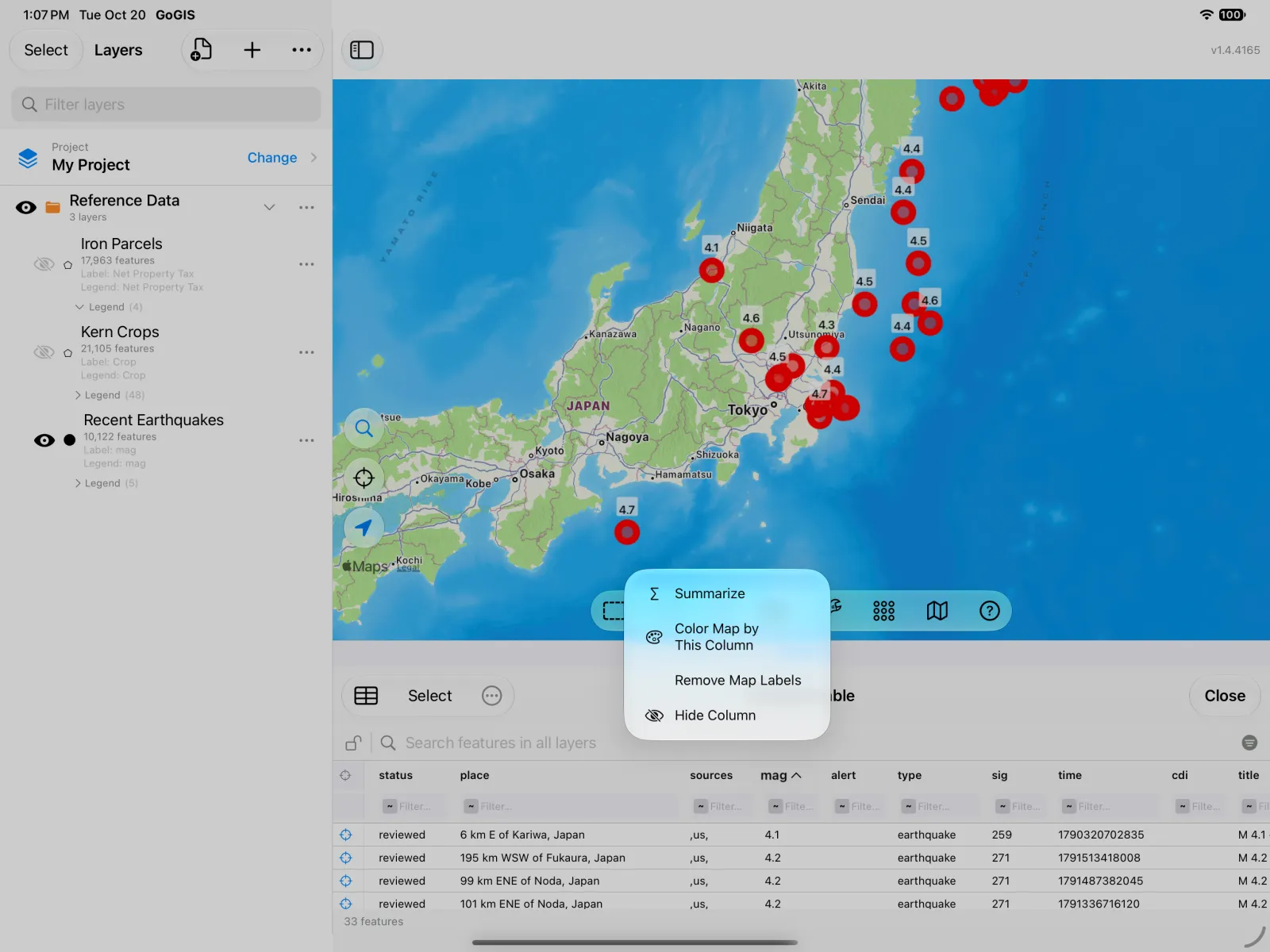
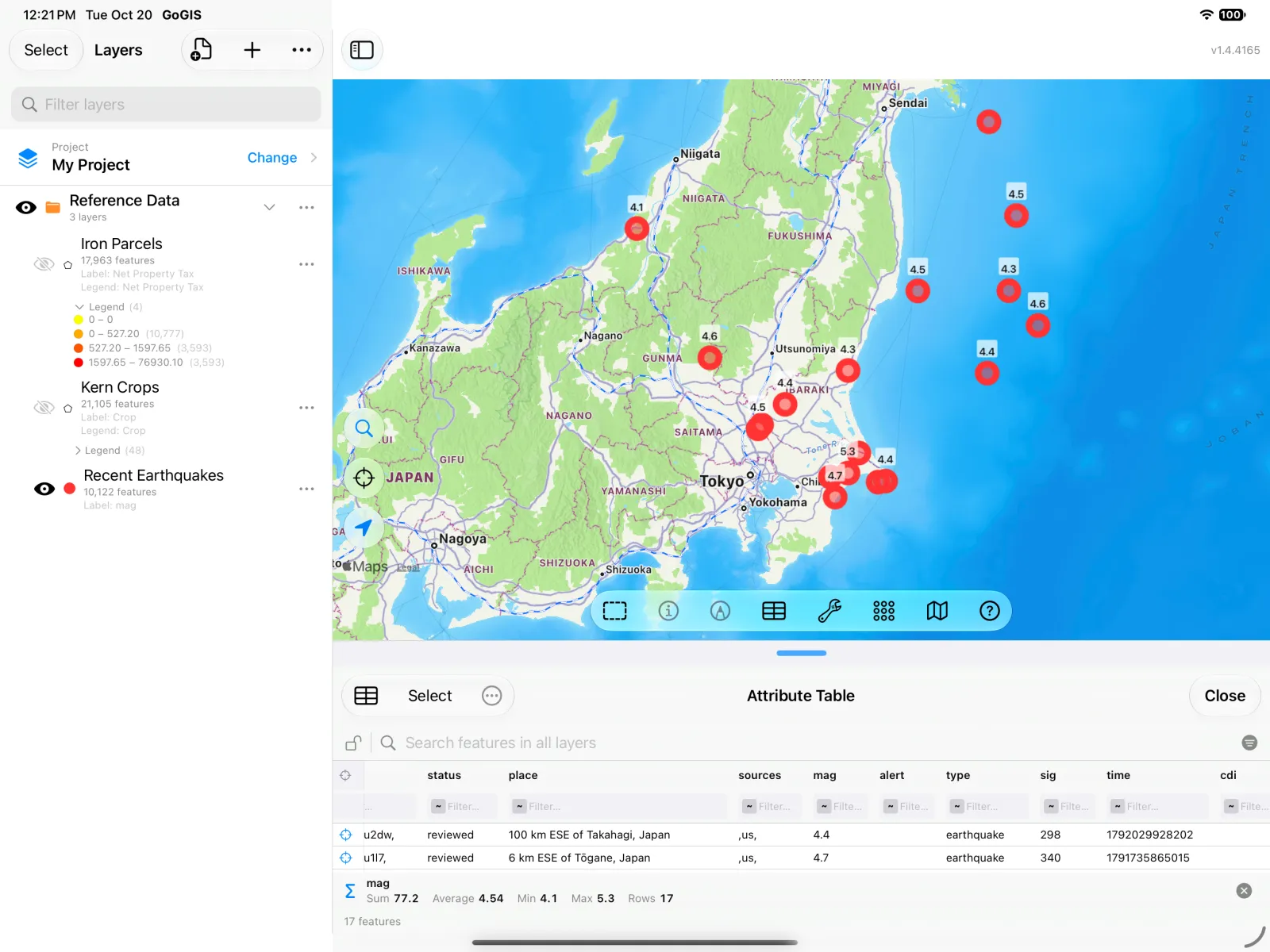
Summarize gives the average and the strongest: an average magnitude of 4.54, the strongest 5.3. (The sum is there too, but adding magnitudes together doesn't mean anything — use the summary that fits your question.) Label Map with This Column puts each quake's magnitude on the map.
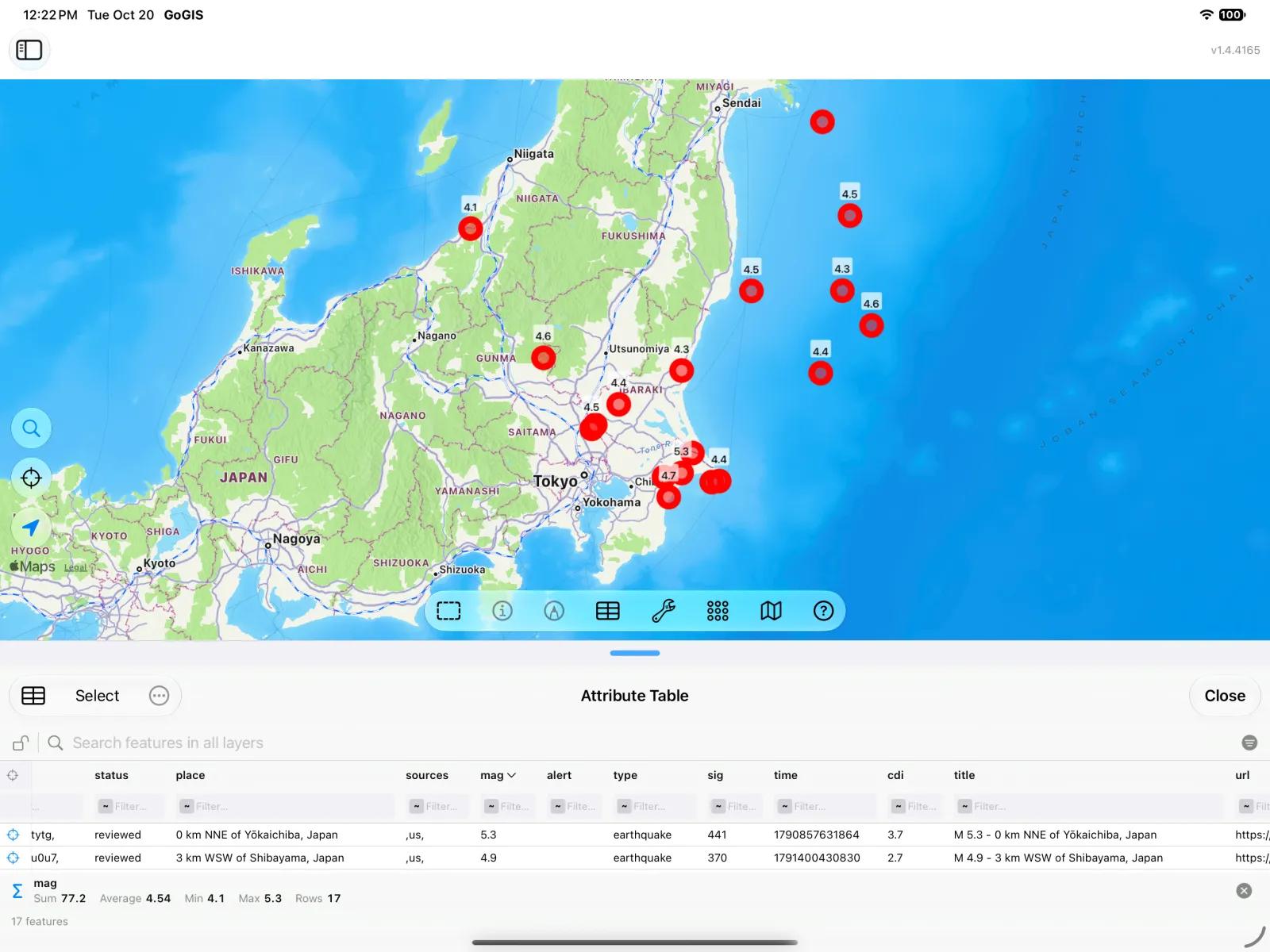
Tip: some columns in this feed are for computers rather than people — time, for example, is in milliseconds since 1970. Press and hold the heading and choose Hide Column to tidy the table before you export it.
Now Try It with Your Own Data
Everything above works on any layer you bring into GoGIS: a shapefile from your county, a GeoPackage from a consultant, a KML from Google Earth, GeoJSON from a web service, a GPX track or a CSV of points. To get a file in, see the guides for shapefiles, GeoPackage and KML and KMZ. Then open its attribute table and ask your question:
- How much? Filter the table, then Summarize a number column.
- Which are the biggest? Tap a heading to sort.
- Where? Color the map by a column, and label it.
- Need it elsewhere? Export the rows as a CSV for a spreadsheet or a report.
All of it runs on the device, offline once the data is loaded, with no account and no subscription.
Ready for more? Going further: buffer, intersect, difference and dissolve combines layers by location: the parcels within a mile of a mine, the soils under a field, the ground left outside a wetland.