Going Further: Buffer, Intersect, Difference and Dissolve
So far, everything has worked on one layer at a time: one map, one table. You filtered it, sorted it, added it up and colored it.
The tools in this guide combine two layers by where their shapes are. They answer questions no single table can:
- Which parcels are within a mile of a mine? (Buffer, then Intersect)
- How much of this parcel is left outside the wetland? (Difference)
- How many acres of each soil type are on the farm? (Intersect, then Dissolve)
Each tool writes a new layer, with its own shapes and its own attribute table. That means everything from part 2 works on the result: sort it, total it, color the map by it, export it.
Get the Data
The examples use free public data from Reference Data, so you can follow along. In the Layers panel, tap the import button (the document with a +) and choose Reference Data. Some datasets come one county at a time; the others download for the area on your screen, so zoom in first.
Grant County, Wisconsin (buffer and intersect):
- Wisconsin Parcels → Grant
- Zoom in on the old lead and zinc mining country around Platteville, then add Mineral Resources (MRDS): mine and prospect sites from the U.S. Geological Survey.
Door County, Wisconsin (soils, difference and dissolve):
- Wisconsin Parcels → Door
- Zoom in on the farm country south of Sturgeon Bay, then add Soil Survey (SSURGO) and Wetlands. Soils download for an area of any size; a big one just takes longer.
Not in Wisconsin? Soil Survey (SSURGO) covers almost all of the United States, so the soils example works almost anywhere. For parcels or fields, use your own county's file, or California Crops in Reference Data if you're in California.
Where the Tools Are
The same four tools are in two places, and the only difference is what they work on:
- A whole layer: tap the … beside the layer in the Layers panel, then Geometry Operations: Buffer Layer…, Intersect Layers…, Difference… and Dissolve…
- Just the features you selected: select them on the map, then open Tools (the wrench in the map toolbar) and Geometry Operations. This is how you ask about one field or one parcel instead of the whole county.
The Tools menu also has Interactive Buffer, which you'll meet first.

Buffer: Draw a Zone Around Something
A buffer is a zone at a set distance around a feature. A point becomes a circle, a line becomes a corridor, and an area grows outward (or, with a negative distance, shrinks inward).
The question: which parcels are within a mile of a mine? Grant County sits in the Upper Mississippi Valley lead and zinc district, and Mineral Resources shows its mines as points.
Try it:
- Load the Grant County data from the box above, and zoom in until the Mineral Resources points show.
- Tap a mine on the map to select it. This example uses the Upper Mississippi Valley Zn-Pb Dist. Mines site south of Platteville.
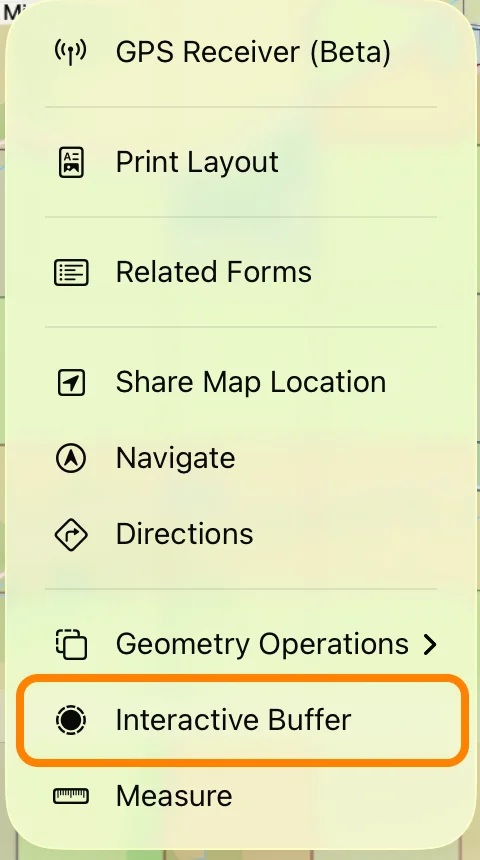
- Tap Tools (the wrench) and choose Interactive Buffer.
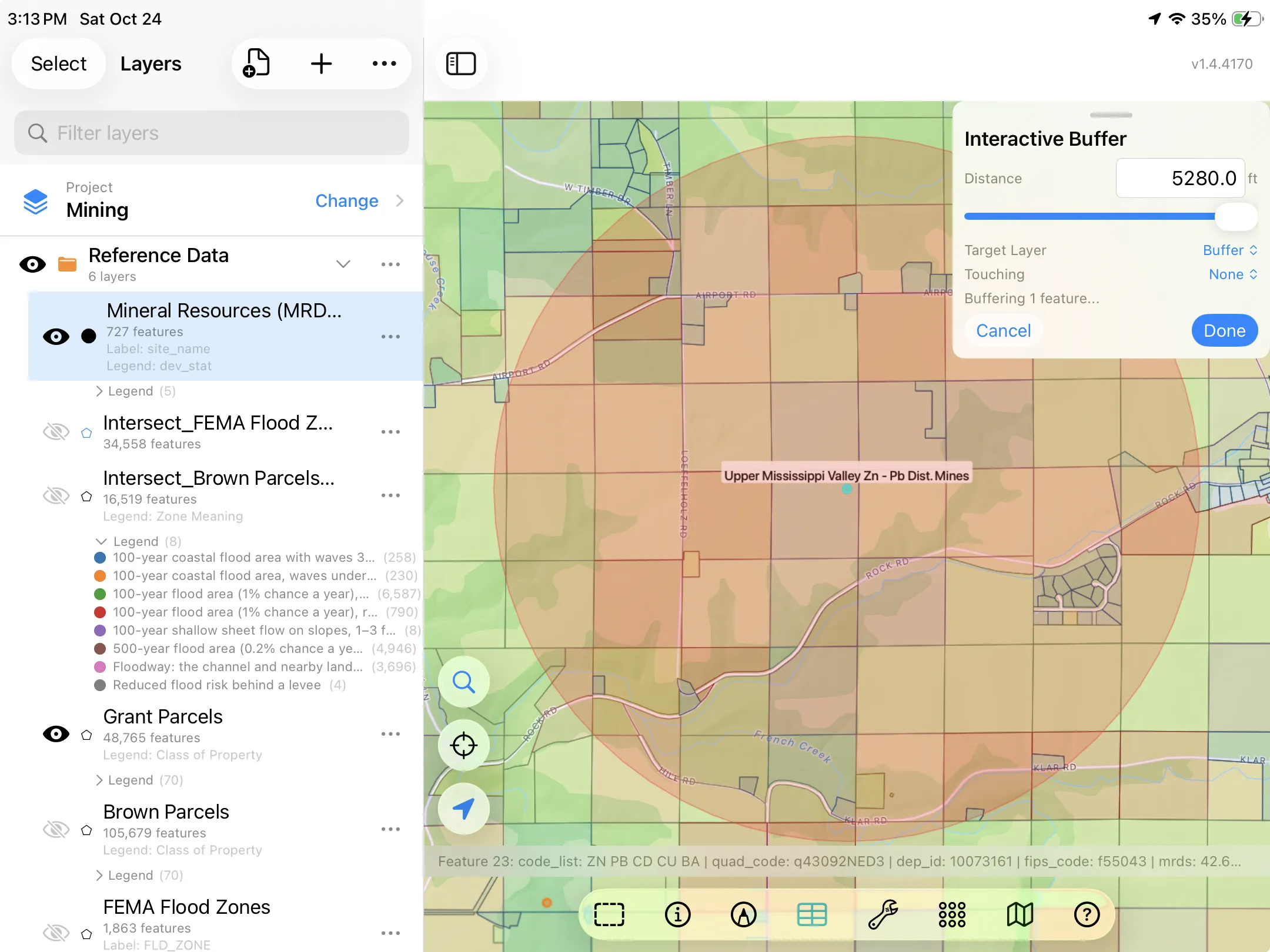
- Set Distance to 5,280 feet, which is one mile. Drag the slider or type the number. The red ring updates on the map as you change it, so you can try a few distances before you settle on one.
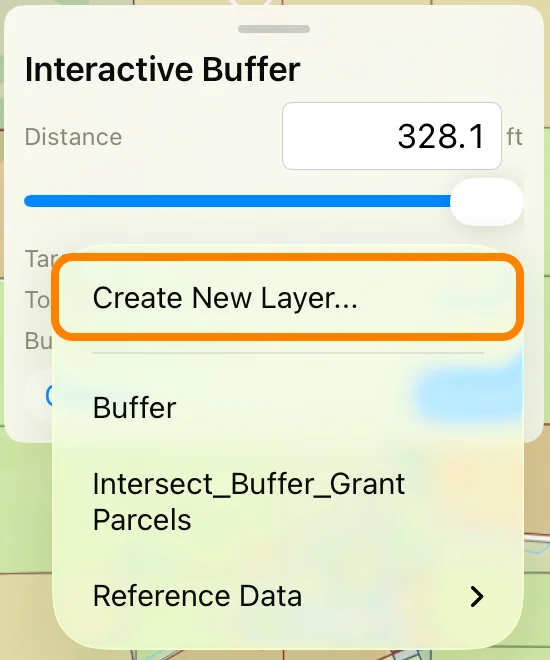
- Tap Target Layer and choose Create New Layer…. Call it Buffer: it's the layer the ring is saved into.
- Tap Done. The new Buffer layer has one feature: the ring.
Who does it touch? Pick the parcel layer under Touching and the panel counts the parcels the ring reaches, and Select Touched highlights them on the map. That's a quick check of how many there are and where. To see who they are, with each parcel's address, parcel ID and class in a table, use Intersect, next.
Intersect: Where Two Layers Overlap
Intersect lays one layer of areas on top of another and keeps only where they overlap. Every overlap becomes a new piece, and each piece carries columns from both layers. You choose which columns to keep from each side.
The parcels within a mile
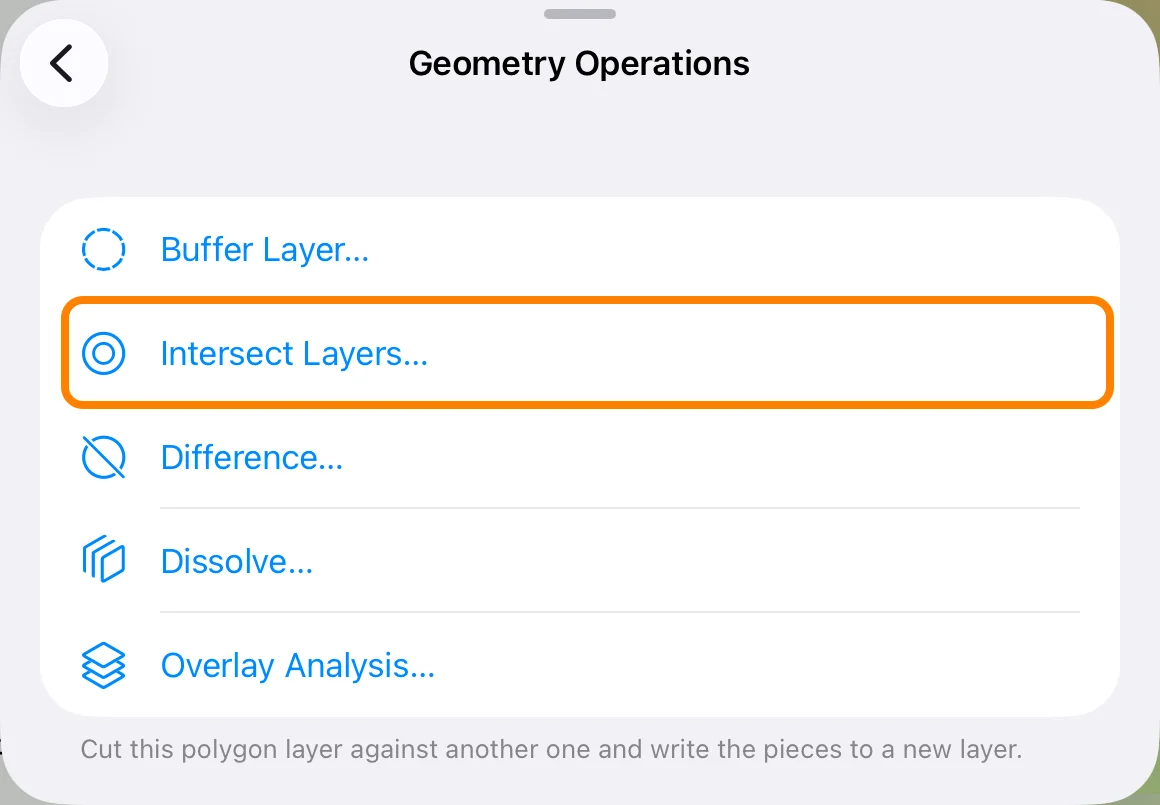
- In the Layers panel, tap the … beside the Buffer layer, then Geometry Operations, and choose Intersect Layers…
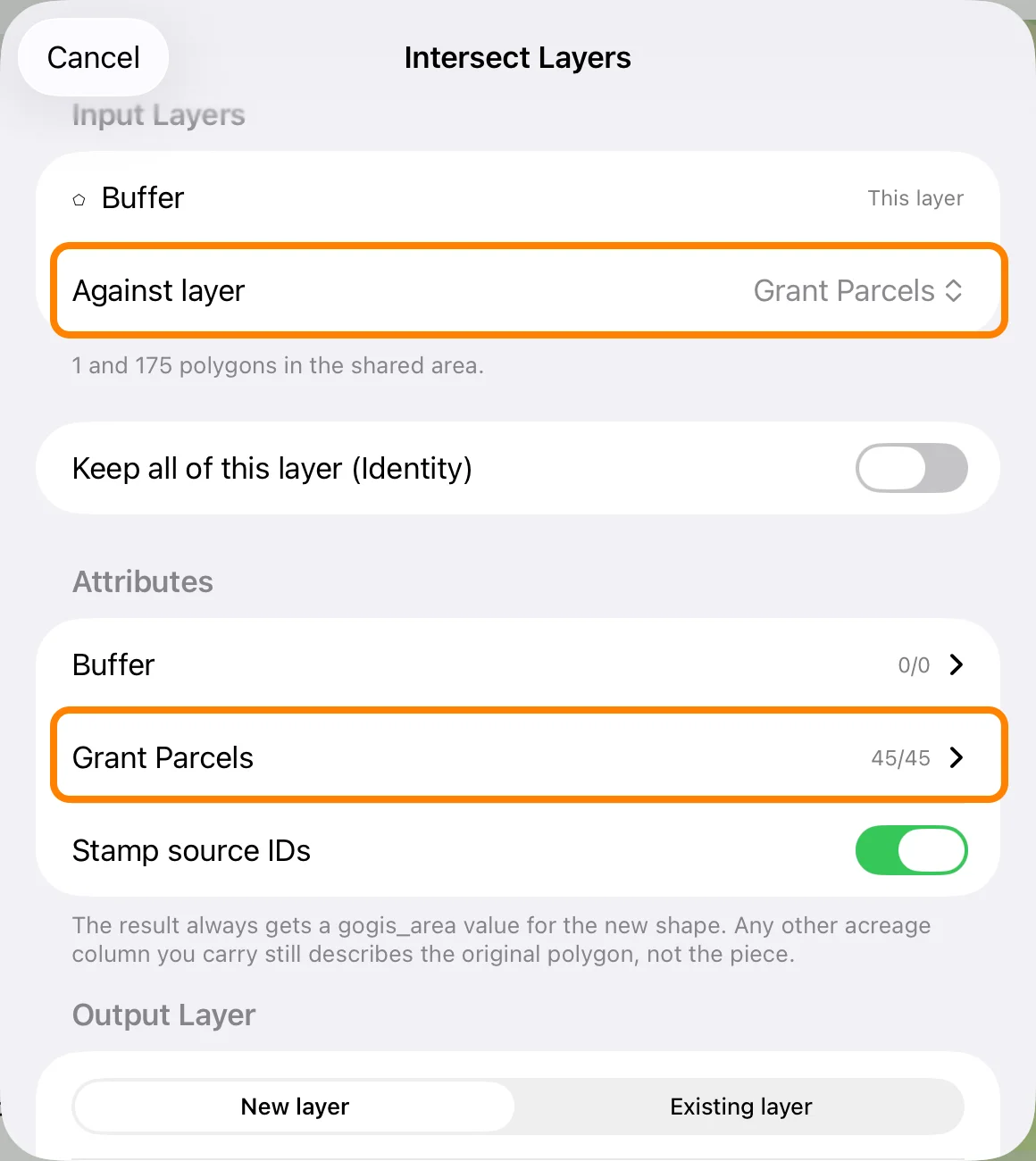
- Set Against layer to Grant Parcels. The sheet tells you how many polygons the two layers share.
- Under Attributes, tap Grant Parcels to choose which of its columns the pieces keep. All of them are on to start (45 of 45 here); turn off the ones you don't need.
- Leave Output Layer on New layer and tap Run.
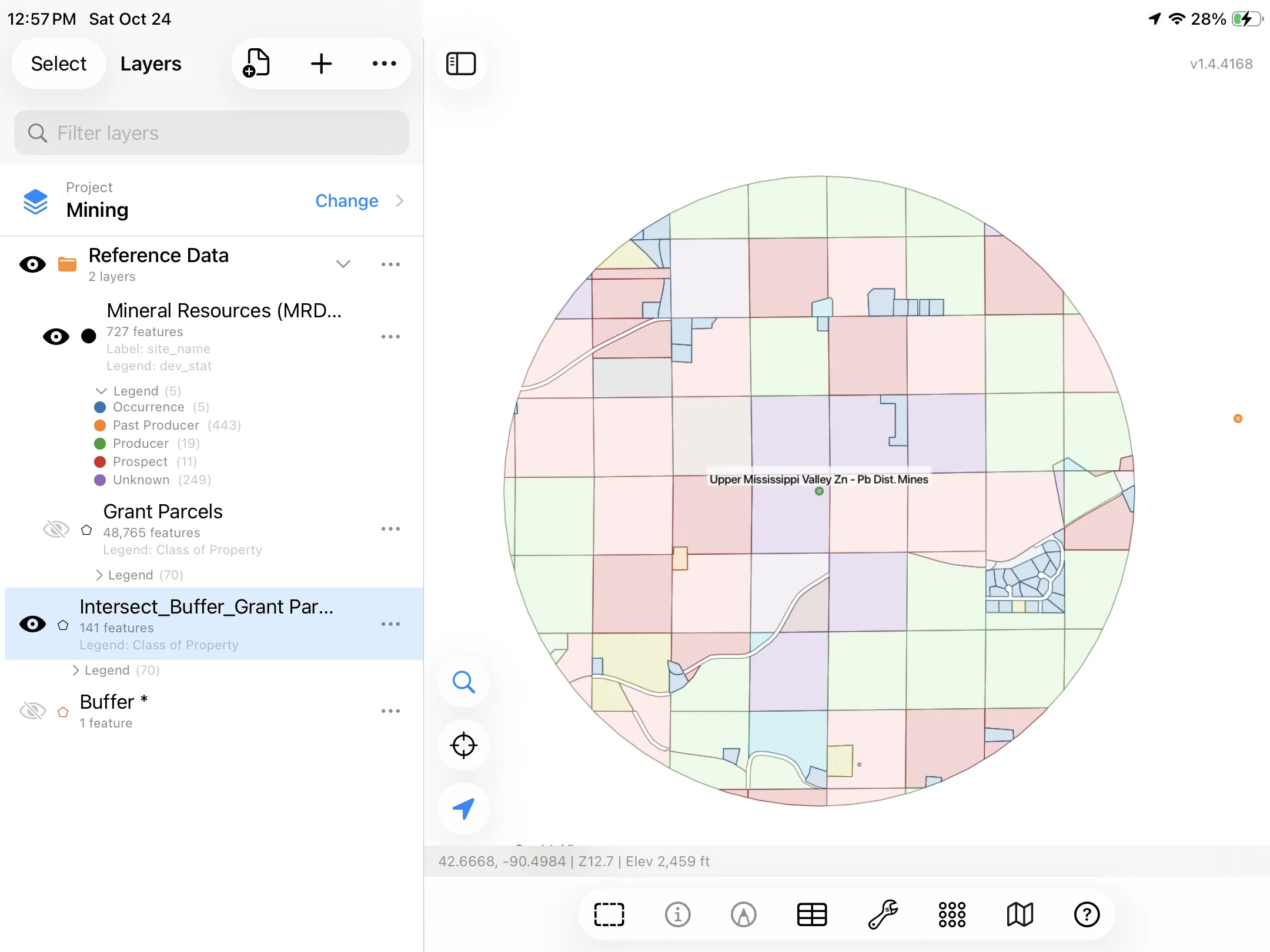
The new layer, Intersect_Buffer_Grant Parcels, is the part of each parcel that lies inside the ring: 141 pieces, each still carrying its parcel's columns. Color it by Class of Property, as in part 2, to see what kind of land the mile covers.
And because the result is a layer, it has a table. Open it the same way as in part 2 to sort, filter or export the list.
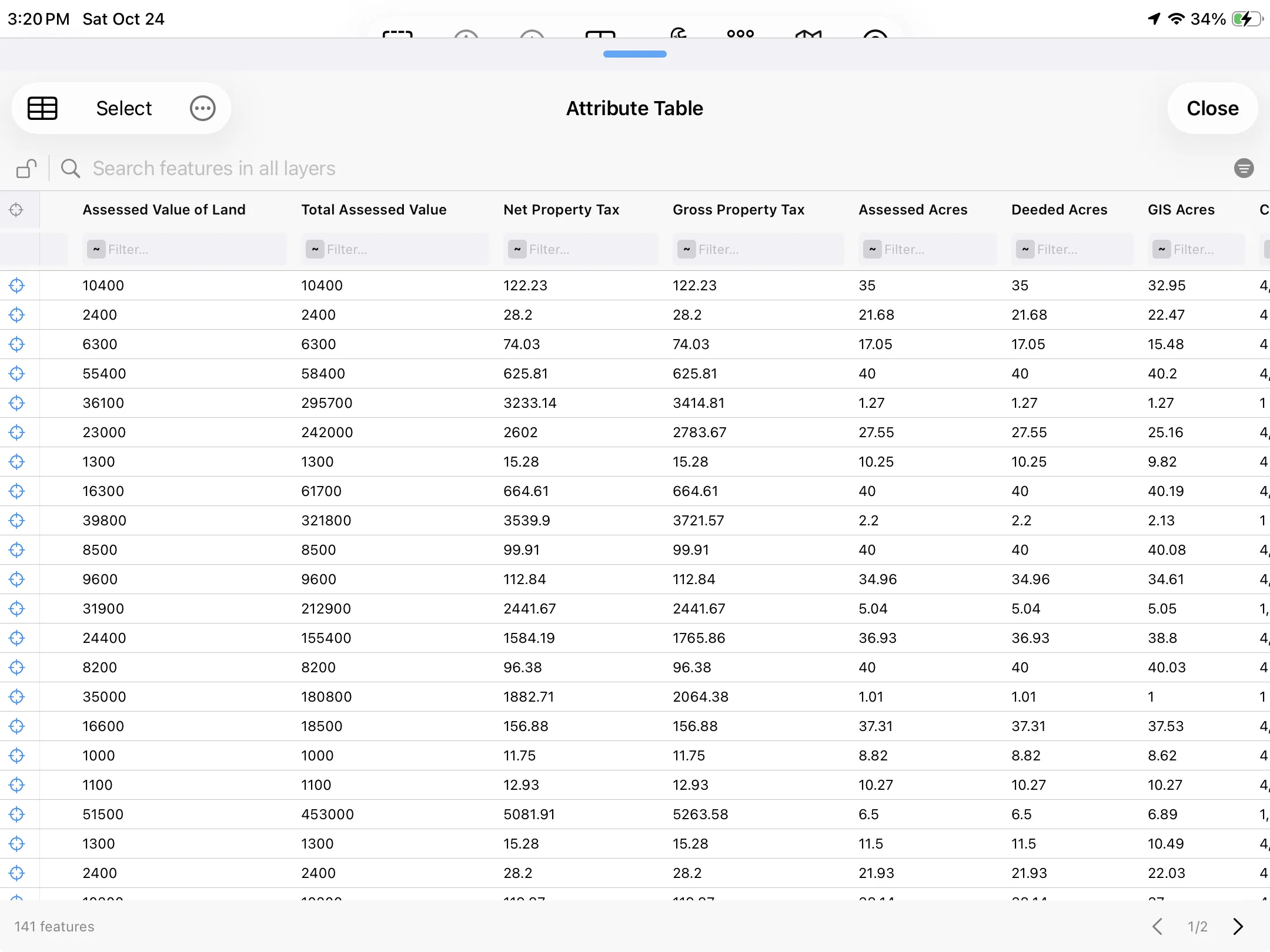
Two kinds of acres. Columns like Assessed Acres, Deeded Acres and GIS Acres came from the original parcel and describe the whole parcel. Intersect also adds a gogis_area column, which measures just the piece inside the ring. To total the area inside the ring, Summarize gogis_area.
Difference: What's Left Over
Difference is the opposite of Intersect: it removes the overlap and keeps the rest. Use it to take something out of an area — wetlands, a flood zone, a setback — and see what's left.
The question: how much of this 39.97-acre parcel is outside the mapped wetlands?
Try it, with Door Parcels and Wetlands loaded:
- Tap the parcel on the map to select it.
- Tap Tools → Geometry Operations → Difference…
- Set Against layer to Wetlands: the layer to take away.
- Leave Output Layer on New layer and tap Run.
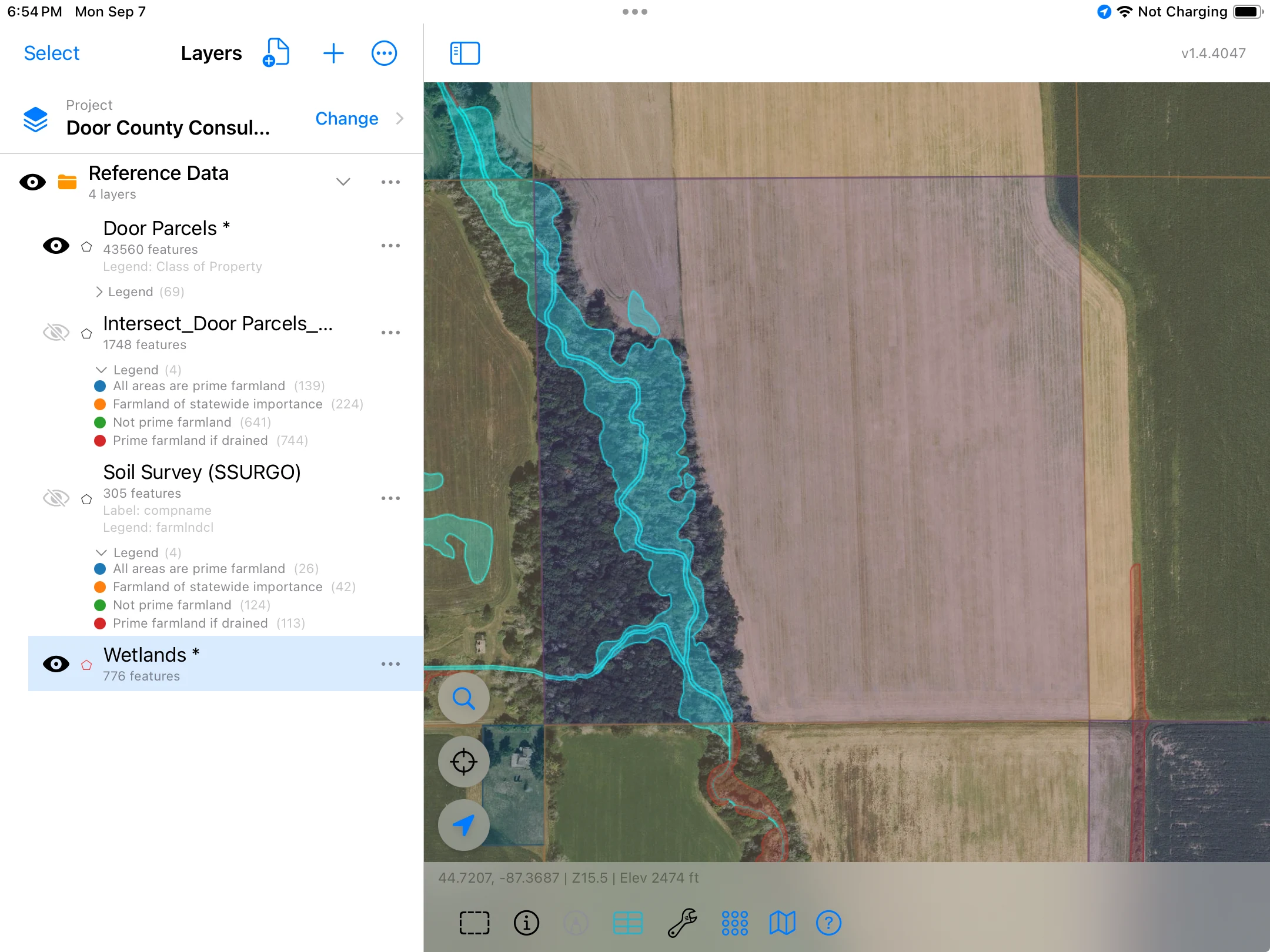
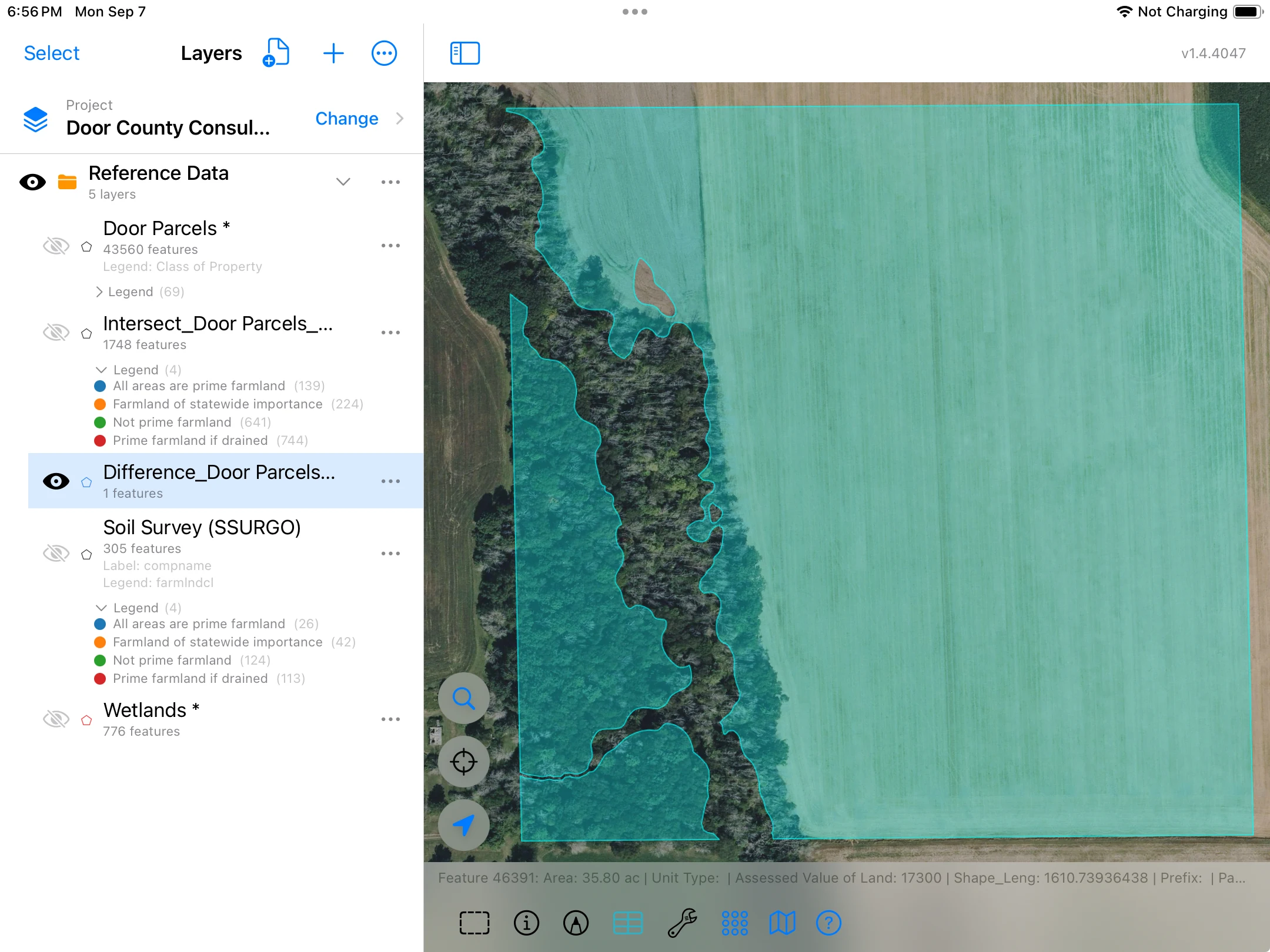
The 4.17 acres of wetland are gone, and the new shape follows the wetland's edge. The same idea works for a flood zone: Difference it from a lot to see the part outside the floodplain. Or Buffer the wells first, then Difference the rings from a field to see the ground you can spray.
Keep in mind that this measures what the maps show. It doesn't tell you what the land can legally be used for.
Dissolve: Merge Shapes Together
Dissolve merges areas into fewer, bigger ones. Merge everything into one outline, or group by a column so every shape with the same value becomes one. It can add up a number column as it goes, and count how many shapes were merged.
The question: how many acres of each soil type are on the farm?
First, the soils under the farm
Dissolve needs something to merge, so start by cutting the soils to the farm with Intersect. This uses the selected-features version from the Tools menu, so it cuts just the farm instead of the whole county. With Door Parcels loaded:
- Select the farm: tap one of its parcels, then long-press each of the others to add it to the selection.
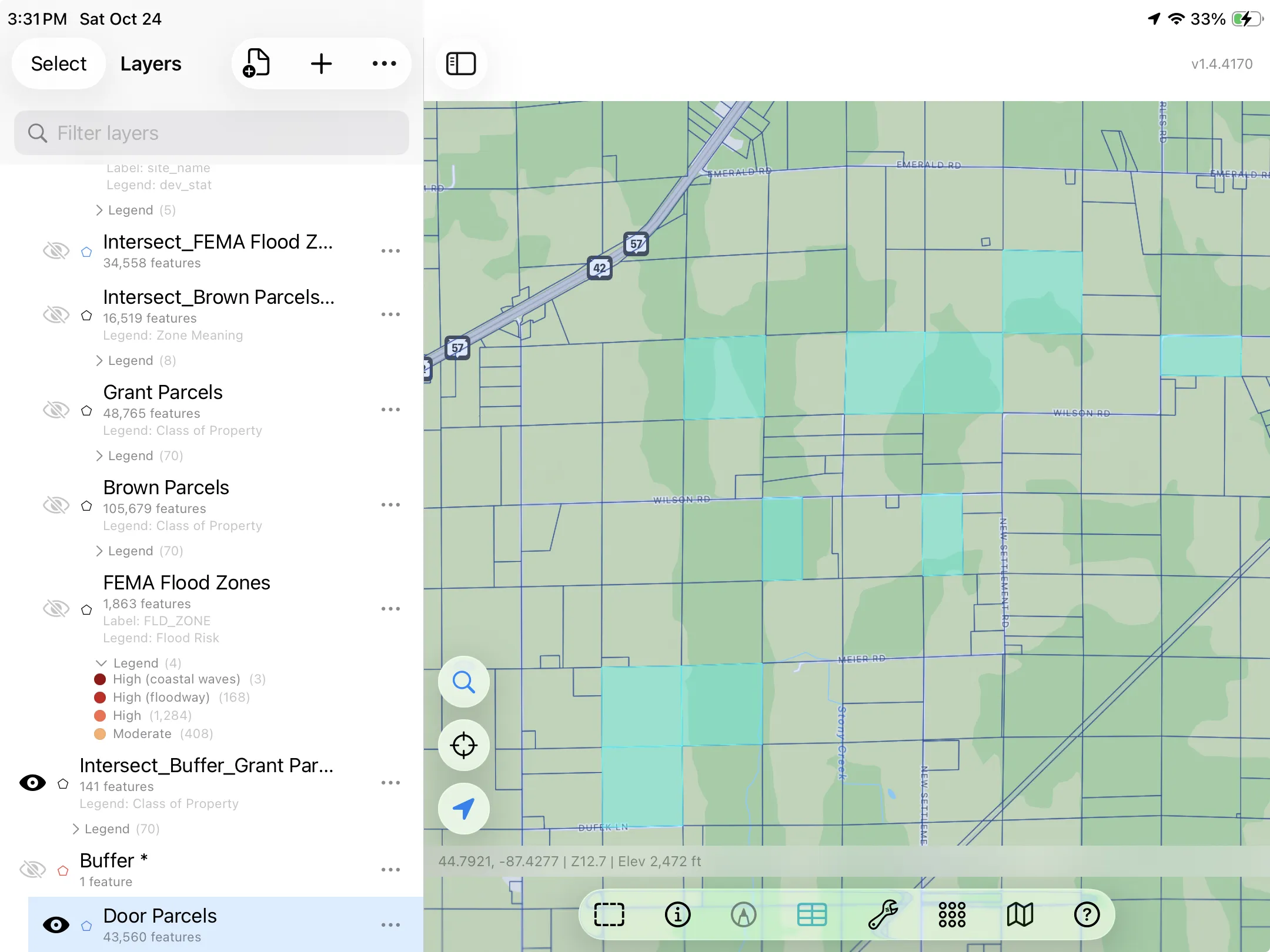
- If you haven't already, download the soils: in the Layers panel, tap the import button (the document with a +), choose Reference Data, then Soil Survey (SSURGO). Soils download for the area on screen, so zoom in on the farm first. If you already have the layer, just turn it on. Every soil area is labeled with its name.
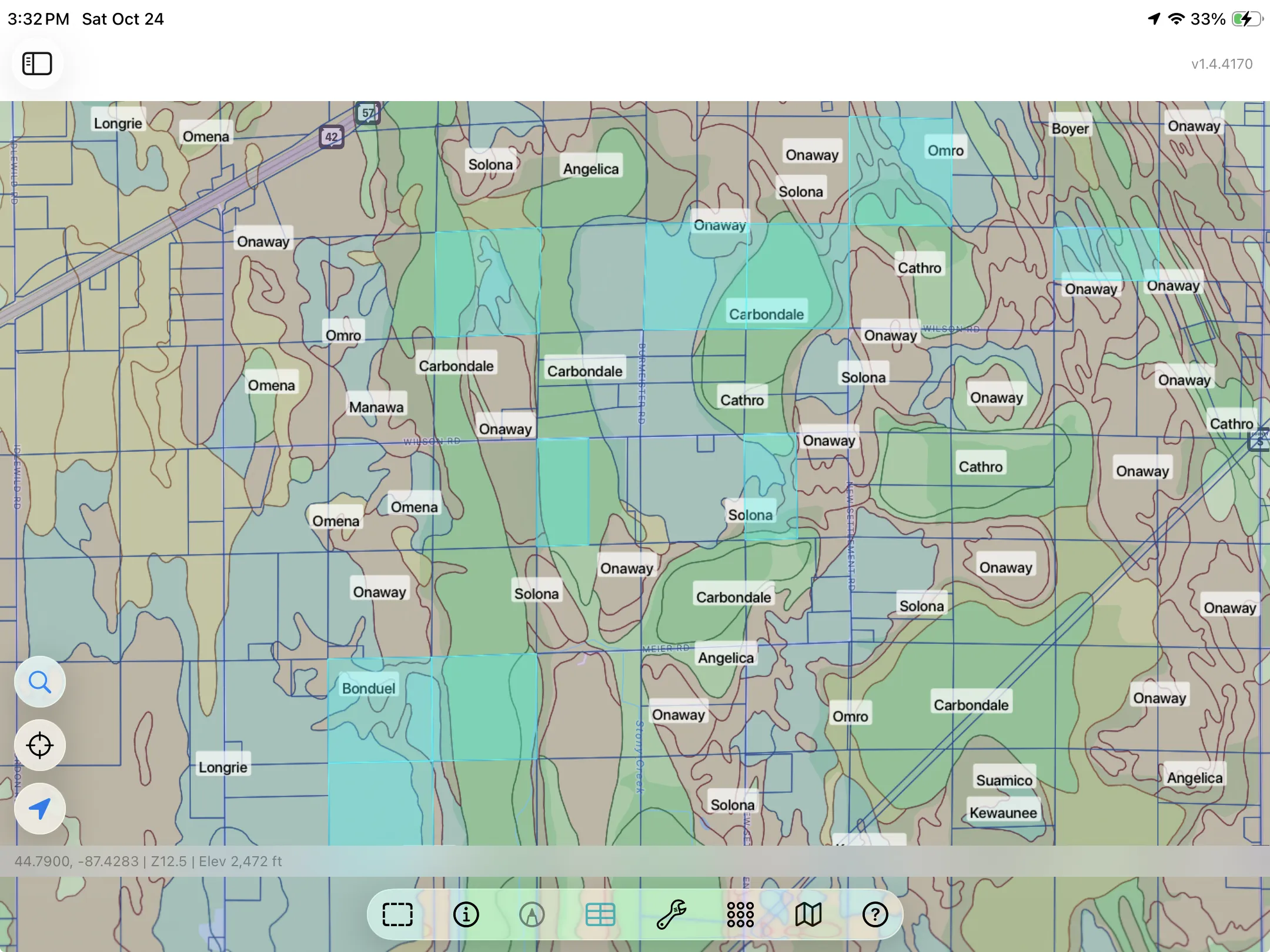
- Tap Tools → Geometry Operations → Intersect Layers…
- Set Against layer to Soil Survey (SSURGO).
- Under Attributes, tap Soil Survey (SSURGO) and keep the soil's name (compname) and its farmland class (farmlndcl).
- Tap Run.
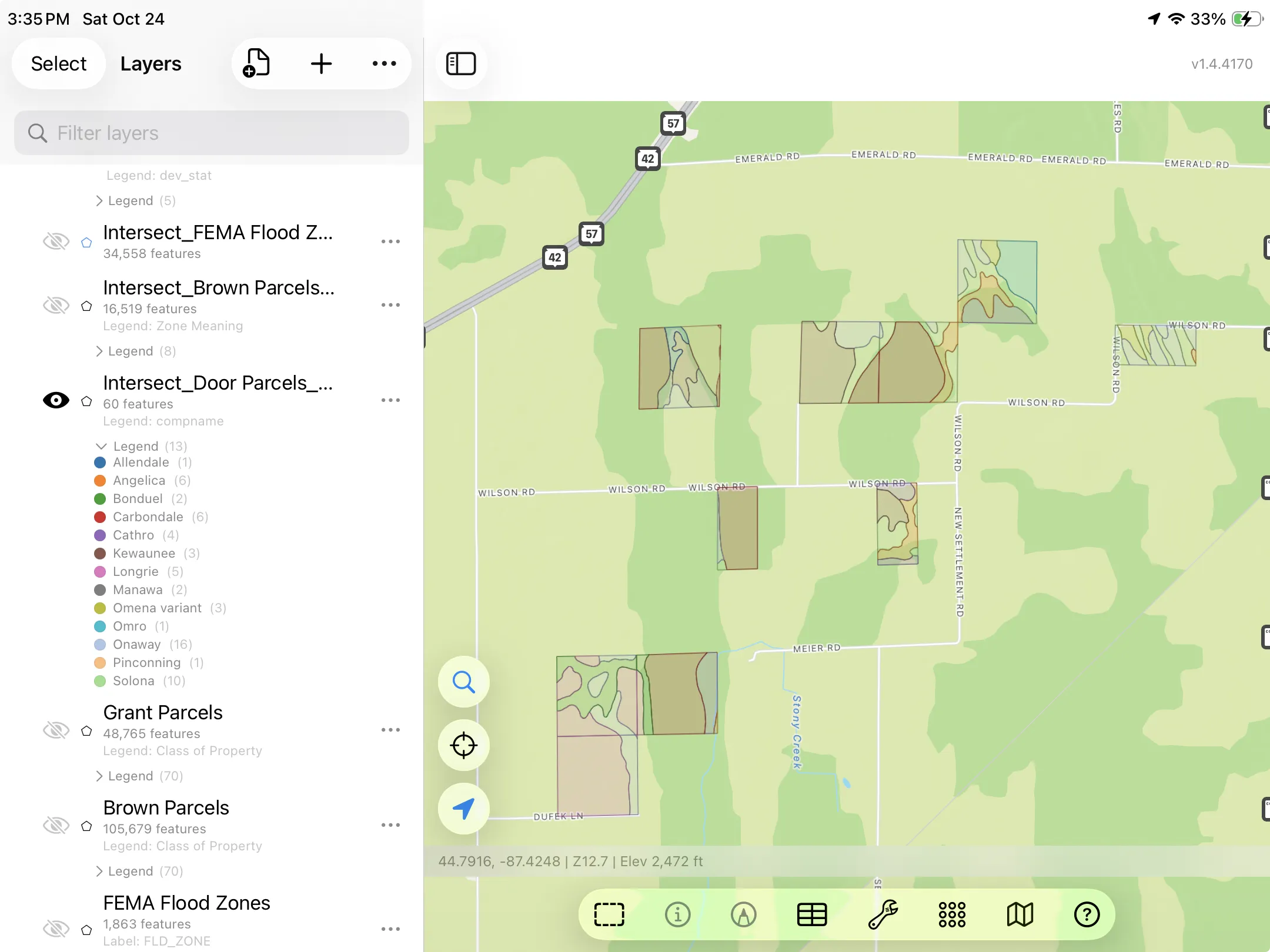
Only the selected parcels are cut, so the new layer holds just the soils on the farm: 60 pieces here, each with its soil name and its own gogis_area. Color it by compname to see them.
For more on soils data, see SSURGO soils and FEMA flood maps.
Then, one shape per soil
Now merge the 60 pieces by soil name:
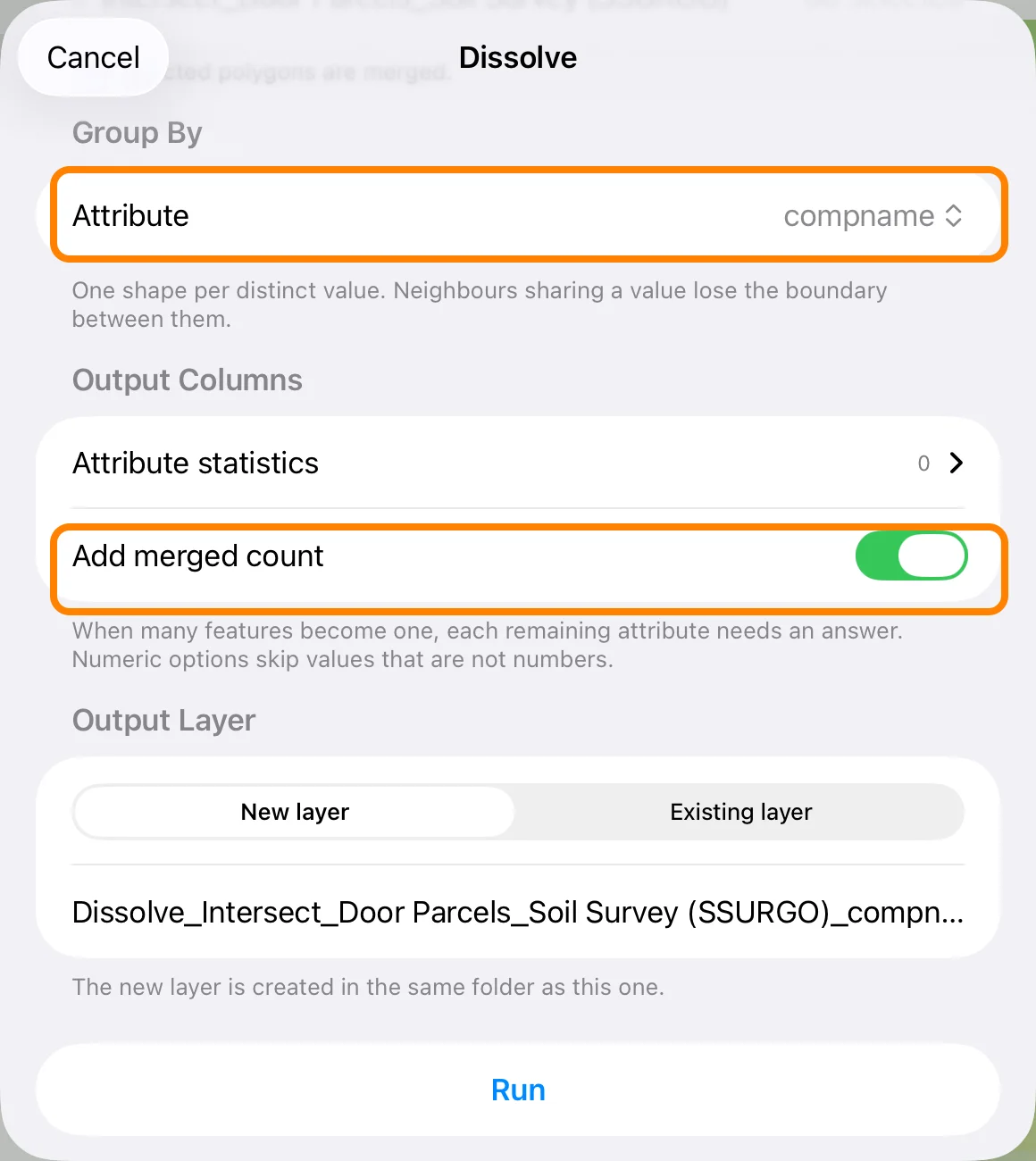
- In the Layers panel, tap the … beside the Intersect result, then Geometry Operations → Dissolve…
- Under Group By, set Attribute to compname. (Leave it on Merge everything to get one outline instead.)
- Turn on Add merged count to see how many pieces went into each soil.
- Leave Output Layer on New layer and tap Run.
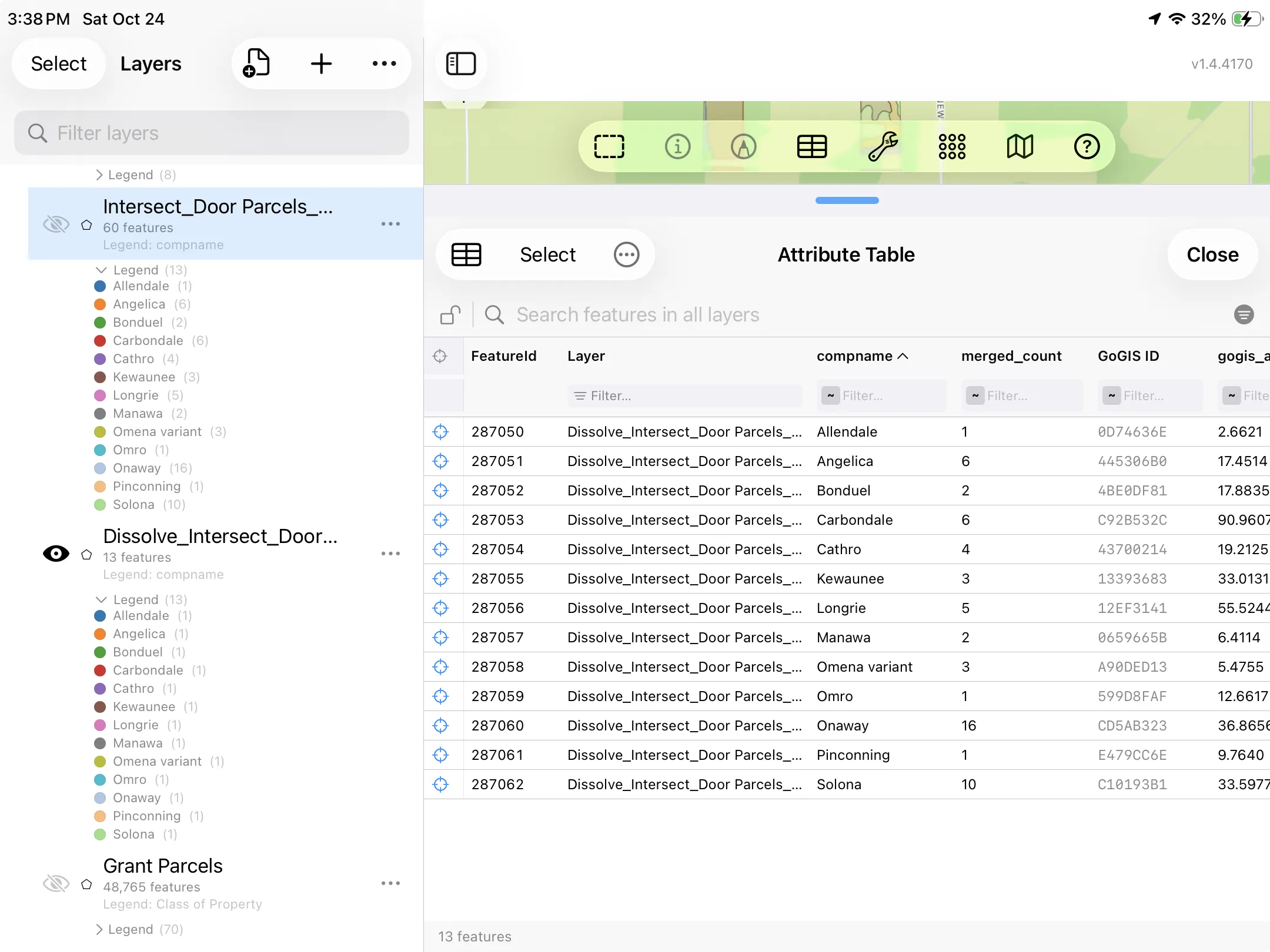
The 60 pieces become 13 shapes, one per soil type. A soil that turns up in several fields is still one feature, made of separate parts. Open the new layer's table: each row is a soil, merged_count says how many pieces it took (Onaway was 16), and gogis_area is that soil's total on the farm. Here the 13 soils add up to about 341 acres, and Carbondale is the largest at 91.
Other uses:
- One work area: select a few neighboring parcels you're treating as one job, and Dissolve them with no grouping to get one outline.
- Parcels by mailing address: group by the owner's mailing address to combine the parcels that share it. (A shared address doesn't prove they have the same owner.)
- Overlapping buffers: merge well buffers that run into each other into a single protection zone.
Every Feature at Once
The examples above work on what you selected. Each tool also has a whole-layer version: tap the … beside a layer in the Layers panel, then Geometry Operations, and it runs on every feature in that layer. For example, Buffer Layer… can draw a 100-foot protection zone around every well, or a 50-foot corridor along every stream from Rivers & Streams. Turn on Dissolve overlaps when buffers that run into each other should become one shape.
Where to Go Next
Each result is an ordinary layer. Style and label it, open its table, or chain the tools together: buffer, then intersect, then dissolve. When you're done, export it as a shapefile or GeoPackage to open in desktop GIS, or as a CSV for a spreadsheet. All of these tools run on the device, so once the data is loaded you can use them with no signal.
For more examples of each tool, see the Geometry Operations FAQ.